

Windows 11 Taskbar Not Working or Freezing: 4 Easy Steps
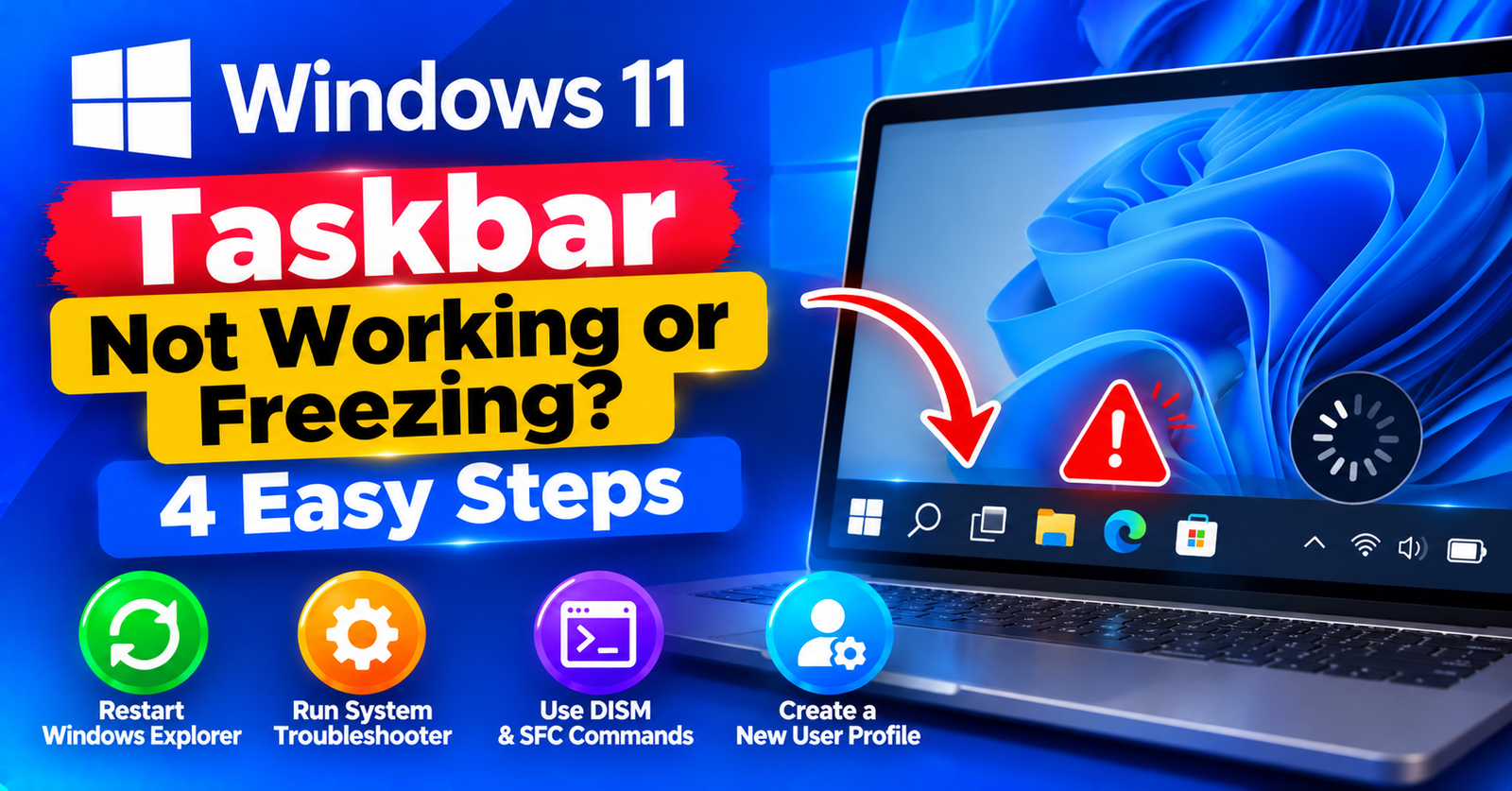
You click the Start button, and nothing happens. You try to click an open app on your taskbar, and your mouse clicks simply pass through into empty space. Or worse: your taskbar disappears entirely.
The Windows 11 taskbar not working bug is one of the most widely reported user interface glitches in modern Windows updates. Because Windows 11 rebuilt the entire taskbar from scratch using modern XAML and Web technology, minor process conflicts can cause the entire shell experience to freeze.
Fortunately, you do not need to reinstall your operating system. In this guide, we will show you four fast methods to restore an unresponsive taskbar in Windows 11.
Fix 1: Restart the Windows Explorer Process (Fastest Fix)
The taskbar is controlled directly by the explorer.exe process. Restarting it refreshes the entire desktop shell without closing your active documents or browser tabs.
- Press
Ctrl + Shift + Escon your keyboard to open Task Manager. - In the Processes list, scroll down to find Windows Explorer.
- Right-click on Windows Explorer and select Restart.
Your screen will flicker for a second as the taskbar and desktop icons reload. In most cases, your taskbar buttons will begin responding immediately!
Fix 2: Re-register the Windows 11 Taskbar via PowerShell
If system files or local package manifests were corrupted during an update, re-registering Windows shell packages using PowerShell restores the taskbar components to their original state.
- Press
Ctrl + Shift + Escto open Task Manager. - Click on Run new task at the top.
- Type:
powershell - Check the box that says Create this task with administrative privileges and click OK.
- In the blue PowerShell window, paste the following command and hit Enter:
Get-AppXPackage -AllUsers | Foreach {Add-AppxPackage -DisableDevelopmentMode -Register "$($_.InstallLocation)\AppXManifest.xml"}Allow the script to run. You may see red deployment warnings as it skips currently active packages; this is completely normal. Once finished, restart your PC.
Fix 3: Restart the Windows Shell Experience Host
The Start menu, system tray notifications, and taskbar calendar are powered by an independent sub-process called StartMenuExperienceHost.exe.
- Open Task Manager (
Ctrl + Shift + Esc). - Click on the Details tab on the left sidebar.
- Find StartMenuExperienceHost.exe and ShellExperienceHost.exe.
- Right-click each and select End process tree.
Windows will automatically restart these processes cleanly within two seconds.
Fix 4: Run SFC and DISM to Repair System Image Corruption
Corrupted system component stores often prevent Windows from loading modern UI frameworks.
- Open Task Manager, click Run new task, type
cmd, check the administrative box, and click OK. - Run this command:
DISM /Online /Cleanup-Image /RestoreHealth
sfc /scannow
Once the scan reaches 100% and reports corrupt files repaired, reboot your PC.
For more computer and server troubleshooting guides, read our tutorials on fixing the failed to write file to disk error and resolving 413 request entity too large issues.
Wrapping Up
A frozen taskbar can feel like a complete system lockup, but restarting Windows Explorer or running the PowerShell package re-registration will restore your Start menu and buttons cleanly.
Which method worked to unfreeze your taskbar? Let us know in the comments below!