

WordPress Not Sending Email: How to Fix with SMTP (Step-by-Step)
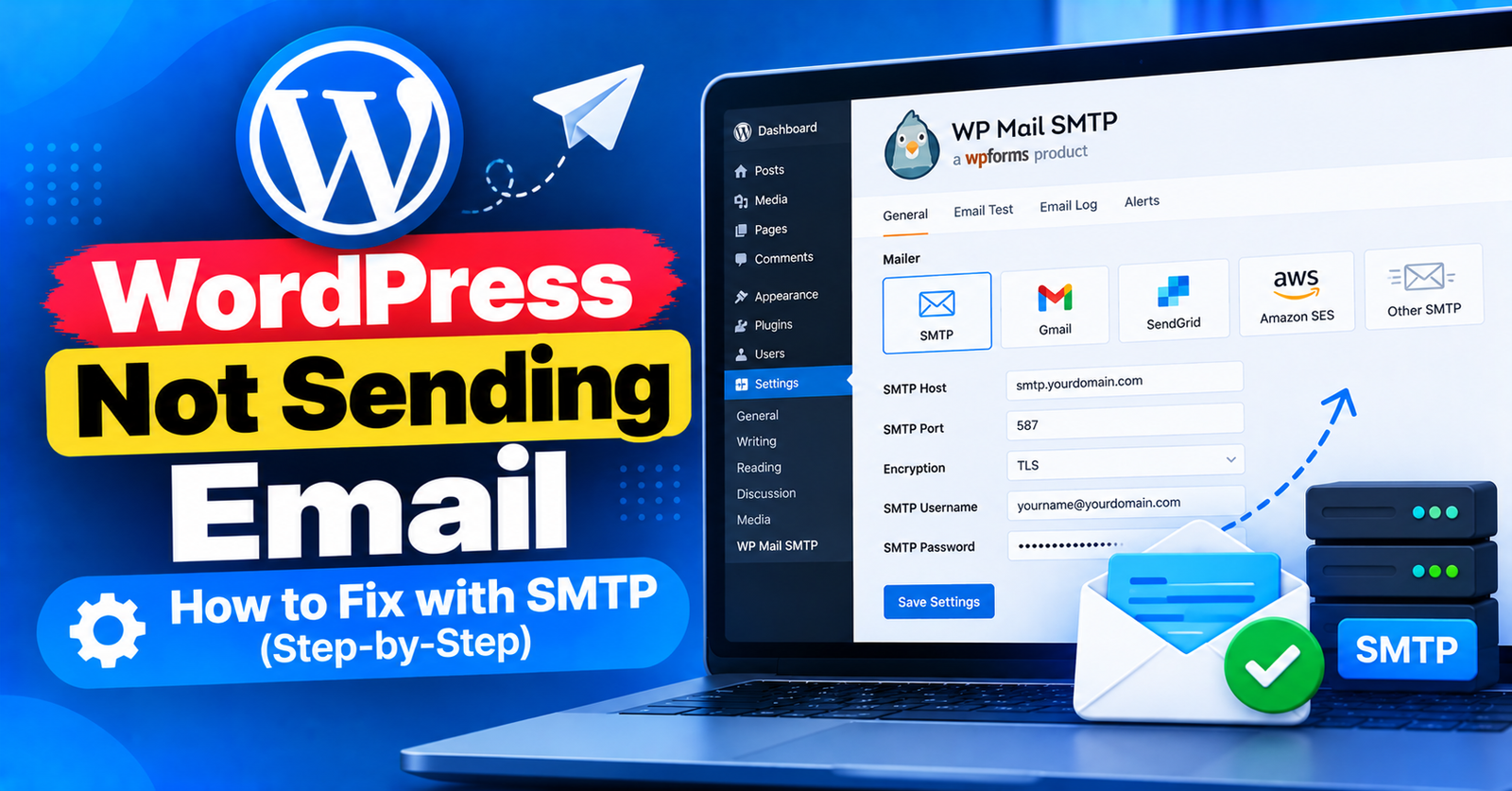
You set up a contact form on your WordPress site, ask a friend to test it, and… complete silence. The form says submitted, but no notification ever arrives in your inbox.
Or worse: visitors use your password reset form, but the reset email never lands in their email account.
The issue of WordPress not sending email is one of the most frustrating problems site owners encounter. By default, WordPress relies on the built-in PHP mail() function to send transactional emails. Unfortunately, most modern email providers (Gmail, Outlook, Yahoo) flag PHP mail as untrusted spam and block it outright.
In this step-by-step guide, we will show you why WordPress emails fail and how to fix the issue permanently using SMTP.
Why Is WordPress Not Sending Email?
When WordPress sends an email using standard PHP mail, the message lacks proper authentication records—specifically SPF (Sender Policy Framework) and DKIM (DomainKeys Identified Mail).



Because spammers often abuse PHP scripts to spoof fake senders, major email hosts automatically reject unauthenticated PHP mail before it even reaches the recipient’s spam folder.
Furthermore, many shared hosting providers disable the PHP mail() function altogether to prevent server abuse.
The solution is simple: route your emails through an established SMTP (Simple Mail Transfer Protocol) provider with proper authentication.
Step 1: Install a WordPress SMTP Plugin
To replace PHP mail with SMTP, you need an SMTP plugin. The most popular and reliable option is WP Mail SMTP.
- Log in to your WordPress dashboard.
- Navigate to Plugins > Add New Plugin.
- Search for WP Mail SMTP by WPForms.
- Click Install Now, then click Activate.
Step 2: Configure Your SMTP Mailer
Once activated, navigate to WP Mail SMTP > Settings in your left menu.
1. Set the From Email and From Name
- From Email: Enter your domain-based email address (e.g.,
contact@yourdomain.com). - From Name: Enter your website name or business brand.
2. Choose Your Mailer
WP Mail SMTP supports several mailer services:
- Brevo (formerly Sendinblue): Offers 300 free emails per day (ideal for most blogs).
- SendGrid: Free tier includes 100 emails per day.
- Google / Gmail: Great for low-volume personal blogs.
- Other SMTP: Use this option if you want to use the email inbox provided by your cPanel web hosting.
Select your preferred mailer and enter the API Key or SMTP credentials provided by your service.
Step 3: Send a Test Email to Verify Delivery
After saving your settings, test the connection to ensure emails are transmitting correctly:
- In WP Mail SMTP, click the Tools tab at the top.
- Click on the Email Test sub-tab.
- Enter your personal email address in the Send To box.
- Click Send Email.
If everything is configured properly, you will see a green success message, and the test email will arrive in your inbox within seconds!
For more troubleshooting guides covering common WordPress dashboard errors, check our tutorials on fixing the failed to write file to disk error and solving 413 request entity too large issues.
Wrapping Up
Fixing the WordPress not sending email issue is essential for maintaining customer contact and security alerts. Switching from PHP mail to SMTP ensures your transactional emails bypass spam filters and land in user inboxes every single time.
Which SMTP service did you choose for your site? Let us know in the comments below!