

Destination Folder Already Exists in WordPress: 2 Quick Fixes
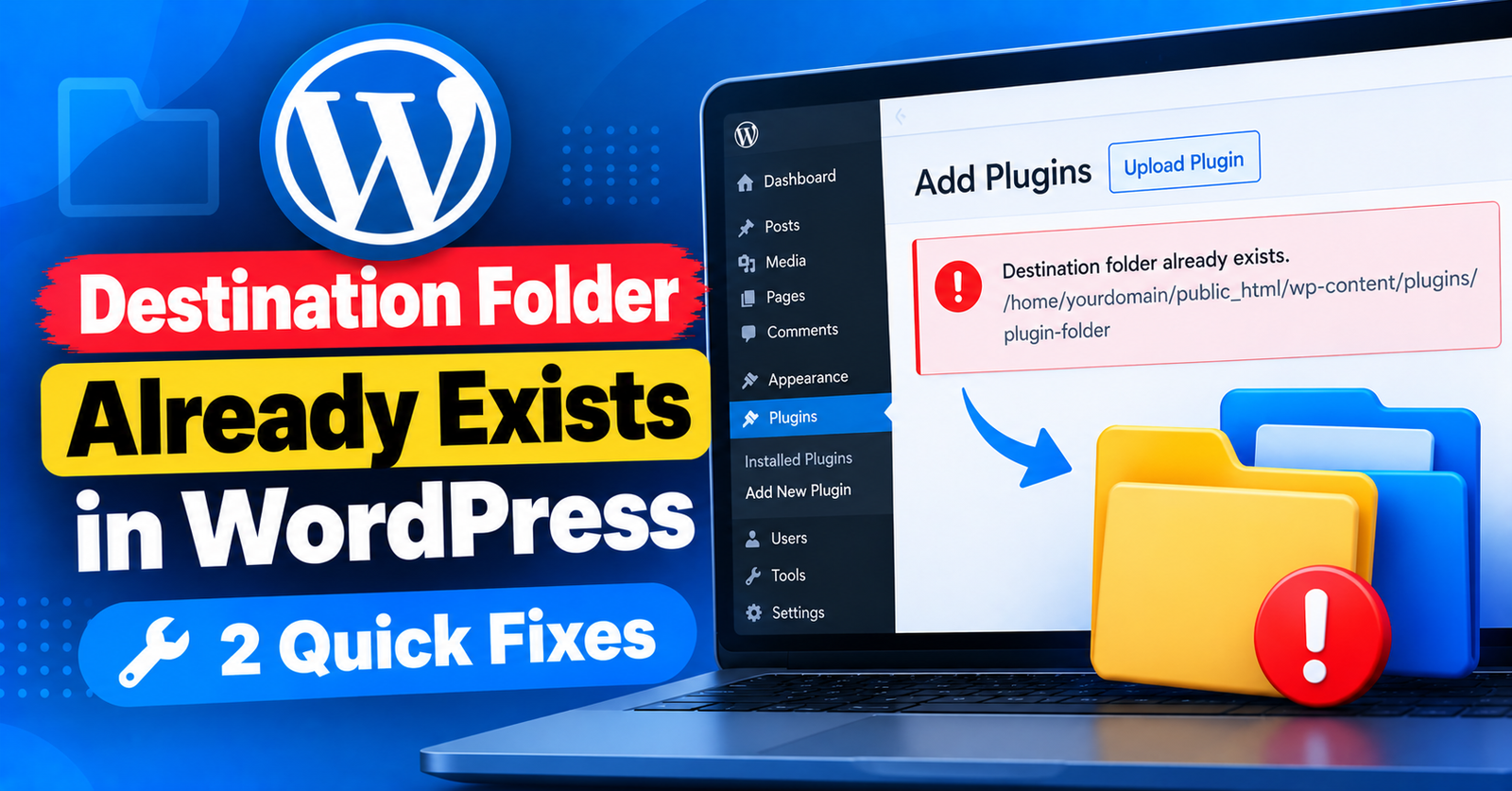
You download a plugin or theme zip file, navigate to your WordPress dashboard to install it, and suddenly the installation aborts with this error message:
Installation failed: Destination folder already exists.
This is a common hiccup during WordPress installations. It stops you from completing the setup, leaving you unable to activate your new plugin or theme.
Fortunately, the fix is straightforward. In this quick guide, we will explain why WordPress shows the destination folder already exists error and demonstrate two easy methods to resolve it.
Why Does the Destination Folder Already Exists Error Occur?
When you install a theme or plugin via WordPress:




- WordPress extracts the uploaded zip package.
- It creates a folder inside
wp-content/plugins/orwp-content/themes/using the extension’s folder name. - If a folder with the exact same name already exists in that directory, WordPress stops immediately to prevent accidentally overwriting existing files.
This typically occurs if a previous installation or update failed midway, leaving an orphaned folder on your server, or if you previously uninstalled the plugin without the folder being completely deleted.
Fix 1: Replace Current with Uploaded (Built-in WordPress Feature)
In modern versions of WordPress, the core uploader includes a smart overwrite feature.
When you attempt to upload a plugin or theme that already exists, WordPress will display a comparison screen showing the currently installed version and the uploaded version.
Simply click the button that says Replace current with uploaded. WordPress will safely overwrite the existing folder and finish the installation cleanly.
Fix 2: Delete the Existing Folder via cPanel or FTP
If WordPress does not offer the overwrite prompt, or if the corrupted folder prevents the uploader from proceeding, manually deleting the leftover folder will clear the block.
Step 1: Open your File Manager
Log in to your hosting cPanel, open File Manager, and go to your root directory (public_html).
Step 2: Locate the conflicting folder
- For plugins: Navigate to
wp-content/plugins/. - For themes: Navigate to
wp-content/themes/.
Look for the folder that matches the name of the plugin or theme you are attempting to install.
Step 3: Delete the folder
Right-click the orphaned folder and select Delete.
Return to your WordPress admin dashboard, navigate to Plugins > Add New (or Appearance > Themes > Add New), and upload your zip file again. It will install smoothly without errors!
For more WordPress file management tutorials, be sure to check our guides on fixing the failed to write file to disk error and resolving 413 request entity too large issues.
Wrapping Up
The destination folder already exists error is simply WordPress’s safety mechanism kicking in. Deleting the abandoned folder or clicking replace resolves the conflict in seconds.
Did deleting the folder solve your installation issue? Let us know in the comments below!