

Mixed Content Warning in WordPress: How to Fix SSL Issues (Easy Guide)
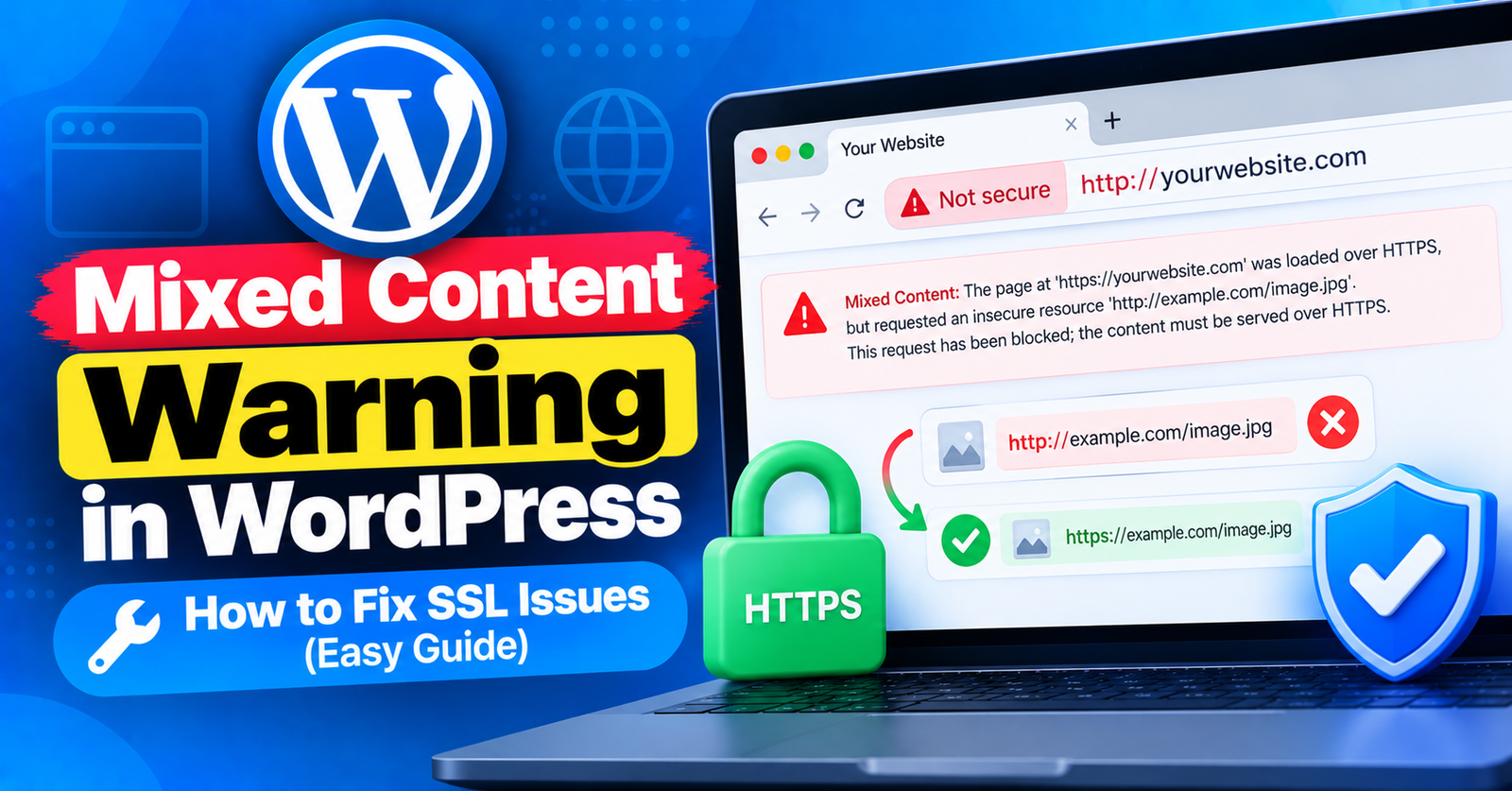
You install an SSL certificate on your domain, configure your site address to HTTPS, and expect to see that clean green padlock in your browser’s address bar.
Instead, your browser shows an exclamation mark, an open padlock, or a warning message: “Your connection to this site is not fully secure.”
This is known as a mixed content warning. It occurs when an otherwise secure HTML webpage over HTTPS is loading sub-resources—such as images, scripts, stylesheets, or iframes—over an insecure HTTP connection.
Not only does this trigger security alarms for visitors, but Google Chrome also actively blocks insecure scripts, causing elements of your layout to break. In this guide, we will show you how to find and fix mixed content warnings in WordPress effortlessly.
What Causes the Mixed Content Warning?
When you transition an existing WordPress site from HTTP to HTTPS, older database entries still retain absolute URLs starting with http://.

Common culprits include:
- Hardcoded image URLs in older blog posts and widgets.
- External fonts or CSS stylesheets linked with HTTP protocols.
- Third-party tracking scripts or embeds loaded insecurely.
Step 1: Check Your WordPress Site Address Settings
Before modifying database entries, verify that your core WordPress addresses are set to HTTPS.
- Log in to your WordPress dashboard.
- Go to Settings > General.
- Ensure both WordPress Address (URL) and Site Address (URL) start with
https://instead ofhttp://. - If you made changes, scroll down and click Save Changes.
Step 2: Fix Mixed Content Using Really Simple SSL Plugin (Easiest Method)
The fastest and most beginner-friendly solution is using a dedicated SSL fixer plugin that automatically handles URL rewrites on the fly.
- Go to Plugins > Add New Plugin.
- Search for Really Simple SSL.
- Click Install Now and Activate.
- The plugin will automatically detect your SSL certificate. Click Activate SSL.
Really Simple SSL includes a built-in mixed content fixer that automatically intercepts insecure HTTP requests and rewrites them to secure HTTPS URLs before the page renders in the browser.
Step 3: Update Insecure URLs Permanently via Better Search Replace
If you prefer not to rely on a plugin running dynamic rewrites continuously, you can update old HTTP URLs in your WordPress database permanently.
- Install and activate the free plugin Better Search Replace.
- Navigate to Tools > Better Search Replace.
- In the Search for field, enter:
http://yourdomain.com - In the Replace with field, enter:
https://yourdomain.com - Select all database tables in the list.
- Uncheck Run as dry run? and click Run Search/Replace.
This replaces all outdated HTTP links inside your database with secure HTTPS links. Once completed, you can safely deactivate and delete the plugin.
Now open your website in an incognito window. The secure padlock icon will appear cleanly in the URL bar!
For more troubleshooting guides, check out our articles on fixing the failed to write file to disk error and resolving 413 request entity too large issues.
Wrapping Up
Eliminating mixed content warnings is crucial for building visitor trust and preserving your SEO rankings. Replacing hardcoded HTTP URLs ensures your SSL certificate protects every asset on your website.
Did this guide help you get your green padlock back? Let us know in the comments below!