

Windows 11 Black Screen with Cursor: 5 Quick Fixes
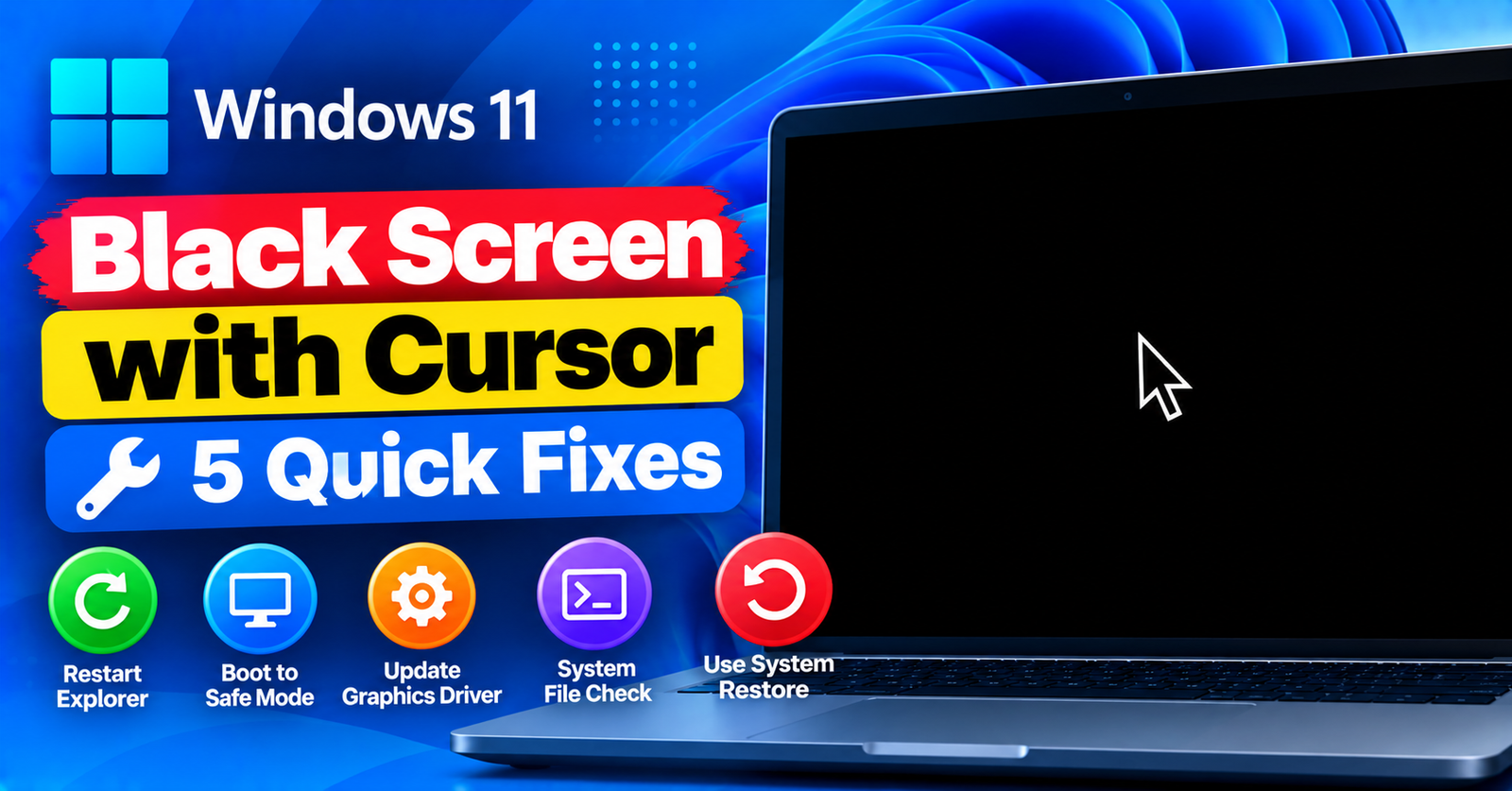
You boot up your computer, expect to see the Windows login screen, and instead find yourself staring at an empty black void.
Your screen is on, your mouse cursor moves freely across the dark display, but your desktop, taskbar, and icons are completely missing.
The Windows 11 black screen with cursor is a notorious issue that typically occurs after major feature updates, display driver crashes, or corrupted shell startup entries.
Do not panic—your files and Windows installation are completely safe. In this guide, we will show you five quick ways to restore your desktop and fix the black screen issue in minutes.
Fix 1: Restart Your Graphics Driver Shortcut (The 5-Second Fix)
Windows includes a built-in emergency shortcut to restart your display adapter without rebooting your computer.





Press this key combination all at once:
Win + Ctrl + Shift + B
Your screen will flicker briefly, you will hear a short beep, and Windows will reload the graphics driver. In many cases, your desktop will appear immediately!
Fix 2: Launch Windows Explorer via Task Manager
If the graphics restart did not bring your desktop back, the Windows Explorer shell process (explorer.exe) likely failed to launch during startup.
- Press
Ctrl + Shift + Esc(orCtrl + Alt + Deland select Task Manager). - Click the Run new task button at the top toolbar.
- Type:
explorer.exe - Check the box for Create this task with administrative privileges.
- Click OK.
Your taskbar, desktop background, and desktop icons will instantly reappear.
Fix 3: Disable Fast Startup
Windows 11 uses a hybrid hibernation mode called Fast Startup to boot quickly. However, it frequently loads corrupted driver states that result in black screens.
- Open Task Manager, click Run new task, type
control, and hit Enter to launch Control Panel. - Go to Power Options > Choose what the power buttons do.
- Click Change settings that are currently unavailable.
- Uncheck Turn on fast startup (recommended).
- Click Save changes and restart your PC.
Fix 4: Reinstall or Roll Back Graphics Drivers
Corrupted GPU drivers from Nvidia, AMD, or Intel are the number one cause of persistent black screen bugs.
- In Task Manager, run
devmgmt.mscto open Device Manager. - Expand Display adapters.
- Right-click your graphics card and select Properties.
- Go to the Driver tab. If available, click Roll Back Driver.
- If Roll Back is grayed out, click Uninstall Device, check the removal box, and restart your computer to let Windows reinstall a clean driver.
Fix 5: Uninstall Recent Windows Updates via Recovery Environment
If the black screen started immediately following an automatic Windows update:
- Hold down the
Shiftkey, pressCtrl + Alt + Del, click the power icon in the corner, and click Restart. - In the recovery screen, go to Troubleshoot > Advanced options > Uninstall Updates.
- Select Uninstall latest quality update.
For more troubleshooting guides covering essential computer and web fixes, check our articles on fixing the failed to write file to disk error and resolving 413 request entity too large issues.
Wrapping Up
A black screen with a cursor can look terrifying, but restarting your graphics driver with Win + Ctrl + Shift + B or relaunching explorer.exe will restore your desktop almost every time.
Did the keyboard shortcut restore your display? Let us know in the comments below!