

How to Defer Parsing of JavaScript in WordPress Without Breaking Anything
You run your website through Google PageSpeed Insights or GTmetrix, eager to see a high performance score. Instead, you are greeted by an amber warning flag:
Eliminate render-blocking resources / Defer parsing of JavaScript
When browsers load a webpage, they read the code from top to bottom. If the browser encounters a standard JavaScript file in your header, it halts all page rendering until the entire script has been downloaded, parsed, and executed.
This results in slow load times, high Largest Contentful Paint (LCP) delays, and frustrated visitors who stare at a blank screen while scripts compile.
In this guide, we will explain what deferring JavaScript means and demonstrate three safe methods to defer parsing of JavaScript in WordPress without breaking your site design.





What Does Defer Parsing of JavaScript Mean?
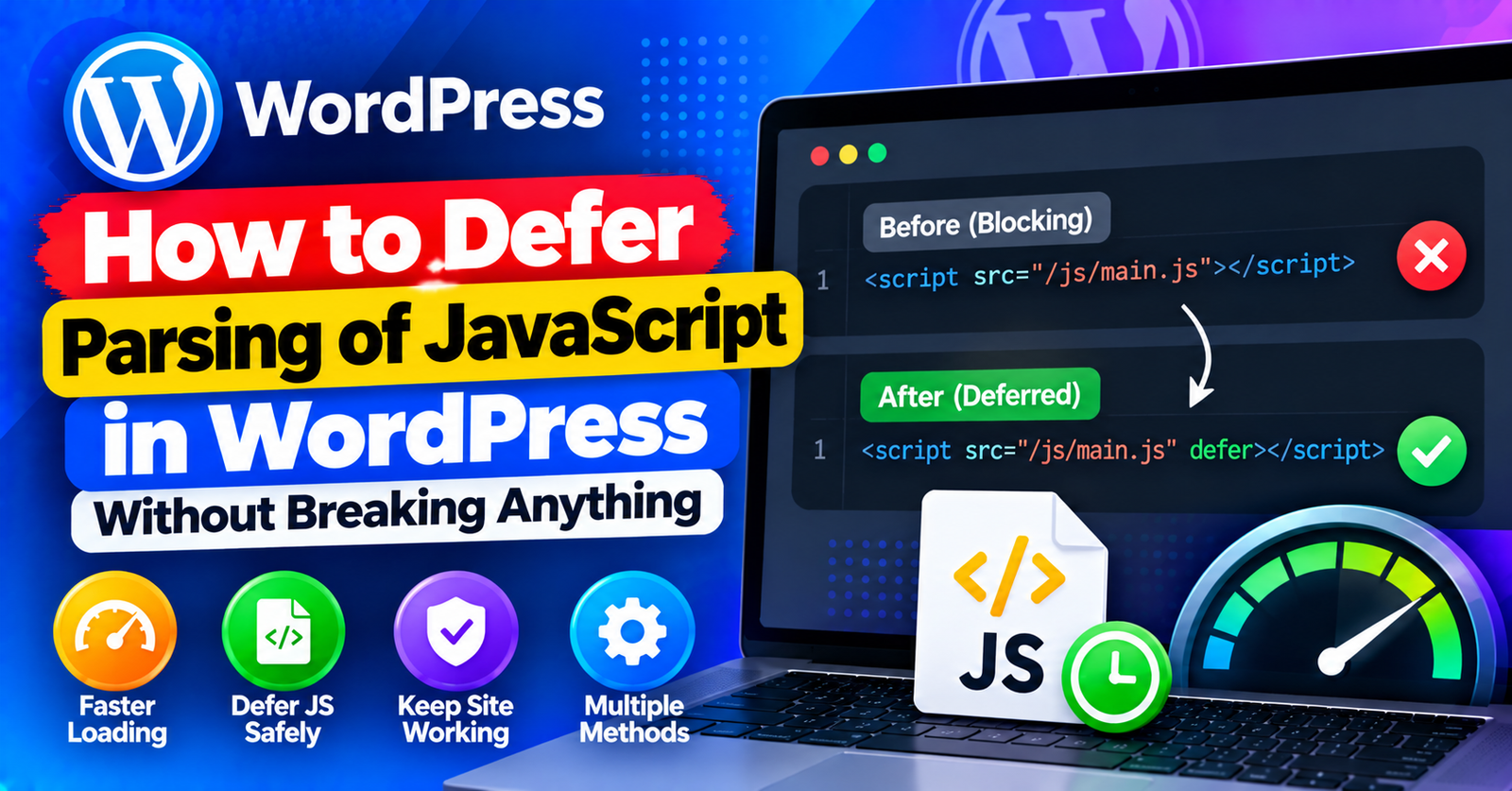
By default, script tags load synchronously. Deferring a script adds the defer attribute to HTML tags:
<script src="script.js" defer></script>
The defer attribute instructs the browser to download the JavaScript file in the background while continuing to render HTML and CSS. The script only executes once the page layout is fully assembled.
This dramatically improves your Core Web Vitals and delivers an instant visual response to your visitors.
Method 1: Defer JavaScript Using LiteSpeed Cache (Recommended)
If your website runs on a LiteSpeed web server, you can enable JavaScript deferral with a single toggle.
- In your WordPress dashboard, navigate to LiteSpeed Cache > Page Optimization.
- Click on the JS Settings tab.
- Find the setting labeled Load JS Deferred and toggle it to ON.
- Scroll down and click Save Changes.
- Purge your cache and test your site in an incognito window to ensure sliders and mobile menus open properly.
Method 2: Defer JavaScript Using Async JavaScript Plugin
If you do not use LiteSpeed, the free Async JavaScript plugin by Frank Goossens gives you complete control over script deferral.
- Install and activate Async JavaScript from Plugins > Add New.
- Go to Settings > Async JavaScript.
- Check the box for Enable Async JavaScript.
- Under Quick Configuration, select Apply Defer.
- In the Scripts to Exclude box, make sure jQuery (
jquery.js) is excluded to prevent menu conflicts. - Click Save Settings.
Method 3: Defer JavaScript via functions.php (No Plugin Needed)
If you prefer lightweight solutions without installing additional plugins, you can add a simple PHP filter to your active theme’s functions.php file:
- Go to Appearance > Theme File Editor (or open
wp-content/themes/your-theme/functions.phpin cPanel). - Add the following code snippet at the very bottom:
function defer_parsing_of_js( $url ) {
    if ( is_user_logged_in() ) return $url; // Do not defer for logged in admins
    if ( FALSE === strpos( $url, '.js' ) ) return $url;
    if ( strpos( $url, 'jquery.min.js' ) ) return $url; // Never defer core jQuery
    return "$url' defer='defer";
}
add_filter( 'clean_url', 'defer_parsing_of_js', 11, 1 );
Save changes. This automatically appends the defer attribute to all external scripts except core jQuery.
For more performance and technical optimization guides, check our tutorials on resolving the failed to write file to disk error and fixing the 413 request entity too large limit.
Wrapping Up
Deferring JavaScript is one of the highest-impact speed optimizations you can make on WordPress. By delaying script execution until the visual layout renders, you boost Google rankings and delight your visitors.
Did your PageSpeed score jump after deferring scripts? Share your before-and-after results in the comments below!