

WordPress White Screen of Death (WSOD): 5 Proven Fixes
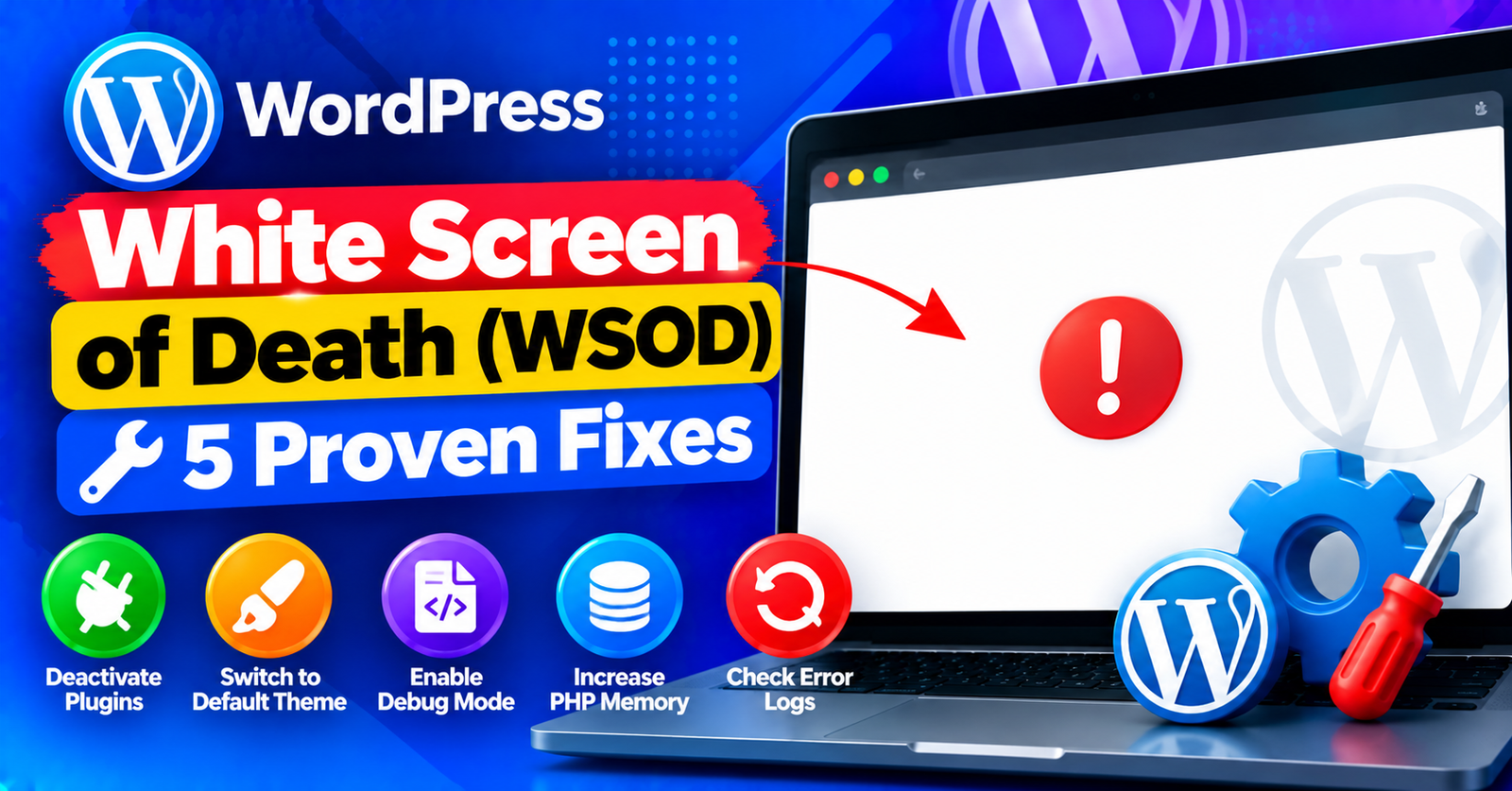
You click on a post or install an update, and suddenly your website disappears completely, replaced by an empty, blinding white screen. No error code, no explanation, no menu.
This infamous issue is known throughout the WordPress community as the WordPress White Screen of Death (WSOD).
Because the screen is completely blank, it can feel like you have nothing to troubleshoot. However, a blank screen simply means that PHP encountered a fatal error before it could render any HTML output.
In this guide, we will demonstrate five practical ways to diagnose and fix the WordPress white screen of death in under five minutes.
What Causes the White Screen of Death in WordPress?
In 99% of cases, the White Screen of Death is triggered by one of three things:




- Exhausted PHP Memory Limit: A script requested more memory than your hosting allows, causing PHP to abort silently.
- Plugin or Theme Code Conflict: Incompatible PHP functions or syntax errors inside active plugins or theme files.
- Corrupted Core Files: An incomplete WordPress update leaving essential core files missing.
Fix 1: Increase the PHP Memory Limit
The most common cause of a blank white screen is memory exhaustion. When a script runs out of RAM, PHP terminates without printing anything to the browser.
- Connect to your server via cPanel File Manager or FTP.
- Open the wp-config.php file in your root directory (
public_html). - Find the line:
/* That's all, stop editing! */and paste this code directly above it:
define( 'WP_MEMORY_LIMIT', '256M' );
Save changes and refresh your website. If the page loads, a memory shortage was the culprit.
Fix 2: Turn on WordPress Debug Mode
If increasing memory did not fix the white screen, turn on WordPress debugging to replace the blank screen with the exact error details.
In your wp-config.php file, locate define( 'WP_DEBUG', false ); and replace it with:
define( 'WP_DEBUG', true );
define( 'WP_DEBUG_LOG', true );
define( 'WP_DEBUG_DISPLAY', true );
Save changes and reload your site. Instead of a blank white screen, you will now see error messages pointing directly to the specific file and line number causing the crash.
Fix 3: Disable All Plugins via File Manager
If you cannot access your dashboard to deactivate plugins, you can disable them all at once through your hosting control panel:
- In cPanel File Manager, open
public_html/wp-content/. - Right-click the plugins folder and rename it to plugins_old.
- Reload your website in the browser.
If your website comes back online, a plugin was responsible. Rename the folder back to plugins, log in to your dashboard, and activate them one by one until the white screen returns.
Fix 4: Switch to a Default WordPress Theme
If disabling plugins did not resolve the white screen, your active theme might have an incompatible function.
- Navigate to
public_html/wp-content/themes/. - Locate your current active theme folder (e.g.,
astraorjannah). - Rename it by appending
_disabledto the folder name.
WordPress will automatically fall back to an installed default theme like Twenty Twenty-Four. If your site loads, reinstall or update your theme to fix the conflict.
Fix 5: Clear Your Server and Caching Layer
If your backend is working but the frontend remains blank, an aggressive caching plugin or server-level cache (like Varnish or LiteSpeed) might be caching an old fatal error state.
- Log in to your hosting account and purge all server caches.
- If you use Cloudflare, click Purge Everything under Caching settings.
For more troubleshooting guides covering common WordPress dashboard errors, review our tutorials on fixing the failed to write file to disk error and solving 413 request entity too large issues.
Wrapping Up
The WordPress White Screen of Death is intimidating because it gives no clues upfront, but turning on WP_DEBUG and systematically checking memory and plugins will get your website restored every time.
Which method brought your website back to life? Share your thoughts in the comments below!