

WordPress Login Redirect Loop: How to Fix in 4 Simple Steps
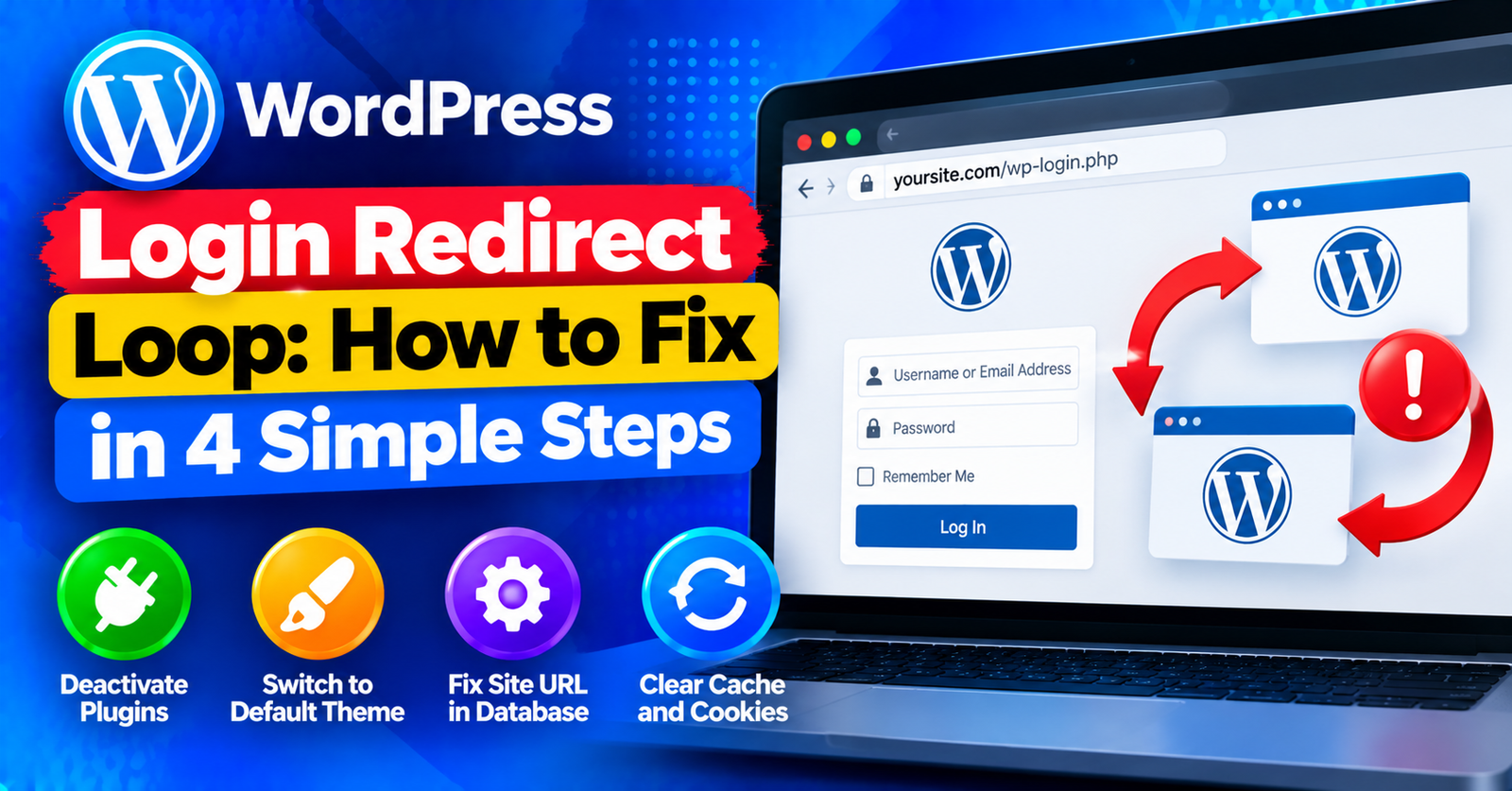
You navigate to your WordPress login page, type in your username and password, click Log In, and… you are redirected straight back to the blank login screen.
No wrong password warning. No error notice. Just a never-ending loop that kicks you right back where you started.
This frustrating behavior is known as the WordPress login redirect loop. It happens when WordPress verifies your login credentials successfully, but fails to set an authentication cookie or gets confused about your website’s exact URL structure.
In this guide, we will walk you through four simple steps to break the redirect loop and regain access to your admin dashboard.
What Causes the WordPress Login Redirect Loop?
When you log in, WordPress issues a session cookie to your browser and redirects you to wp-admin/. A redirect loop happens when:




- Corrupted Browser Cookies: Outdated session cookies in your browser conflicting with new authentication tokens.
- Mismatched Site URLs: Differences between HTTP and HTTPS, or
wwwand non-wwwin your WordPress settings. - Faulty Security or Redirection Plugins: A caching or two-factor authentication plugin misfiring on redirect headers.
- Corrupted .htaccess File: Bad rewrite rules sending admin requests back to the login page.
Fix 1: Clear Browser Cookies and Cache
Before modifying server files, check if the issue is stored inside your browser’s local memory.
- Open an Incognito or Private window in your browser (press
Ctrl + Shift + NorCmd + Shift + N). - Navigate to your login URL:
https://yourdomain.com/wp-login.php. - Attempt logging in.
If you can log in inside Incognito mode, your main browser’s cookies are the culprit. Open your browser settings, search for Cookies, and clear cookies specifically for your domain.
Fix 2: Define Site URLs Explicitly in wp-config.php
A mismatch between your site address and WordPress address is the leading cause of login loops, especially after installing an SSL certificate.
- Log in to your hosting cPanel, open File Manager, and open
public_html/wp-config.phpfor editing. - Scroll down to the line:
/* That's all, stop editing! Happy publishing. */ - Right above it, paste the following lines (replace with your actual domain):
define( 'WP_HOME', 'https://yourdomain.com' );
define( 'WP_SITEURL', 'https://yourdomain.com' );
Ensure that both URLs match exactly (including the https:// and whether your site uses www or not). Save changes and try logging in again.
Fix 3: Reset Your .htaccess File
A corrupted .htaccess file can intercept admin requests and redirect them in an endless cycle.
- In cPanel File Manager, go to
public_html/. - Locate the .htaccess file and rename it to .htaccess_old.
- Try logging into your WordPress admin area.
- If login works, go to Settings > Permalinks and click Save Changes. WordPress will automatically generate a clean, fresh .htaccess file.
Fix 4: Deactivate Plugins via cPanel or FTP
Security, caching, or redirection plugins can occasionally cause conflicts that trap you in an authentication loop.
- In File Manager, navigate to
public_html/wp-content/. - Rename the plugins folder to plugins_backup.
- Try logging in. If you can access the dashboard, a plugin was causing the loop.
- Rename the folder back to plugins, then reactivate your plugins one by one from the dashboard until you identify the culprit.
For more essential WordPress troubleshooting tips, check our guides on fixing the failed to write file to disk error and resolving 413 request entity too large issues.
Wrapping Up
A WordPress login redirect loop can feel like being locked out of your own house, but clearing browser cookies and explicitly declaring site URLs in wp-config.php will get you back into your admin dashboard quickly.
Which method broke the redirect loop on your website? Share your experience in the comments below!