

WooCommerce Cart Not Updating or Emptying: 4 Easy Fixes
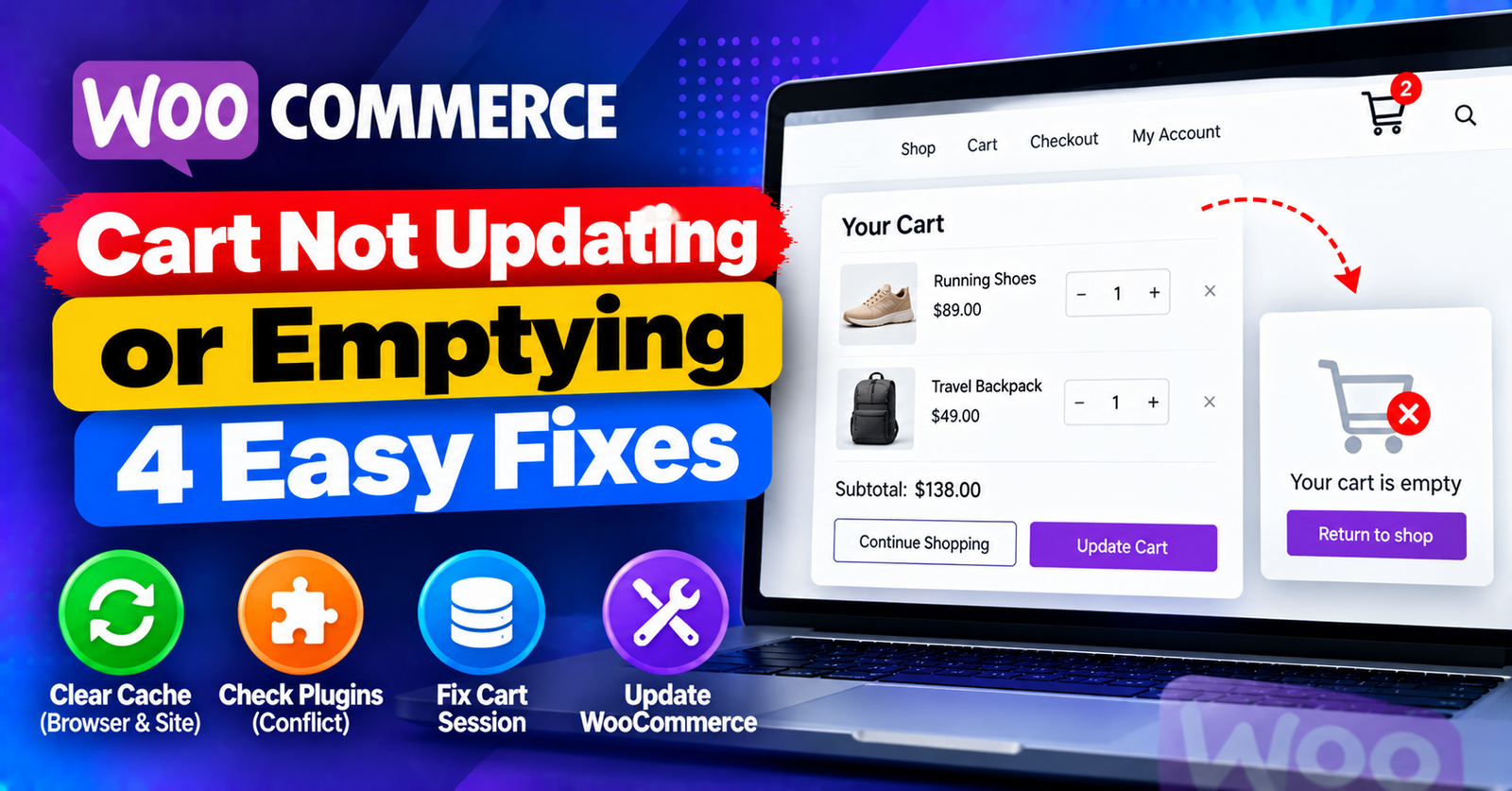
Running an online store is all about a frictionless checkout experience. But nothing ruins sales faster than a shopping cart that refuses to work properly.
You click Add to Cart, but the cart page remains completely empty. Or a customer changes the quantity of an item, clicks Update Cart, and the total stays stubbornly the same.
The WooCommerce cart not updating issue is one of the most common ecommerce bugs. Because WooCommerce relies heavily on dynamic sessions, cookies, and AJAX requests, caching setups often clash with cart functionality.
In this guide, we will walk you through four simple steps to fix your WooCommerce cart and ensure your checkout runs smoothly.
What Causes the WooCommerce Cart to Malfunction?
When customers interact with your cart, WooCommerce uses nonces, cookies, and AJAX endpoints (like /?wc-ajax=update_order_review) to update items dynamically without reloading the whole page.




Common reasons the cart fails to update include:
- Aggressive Caching: Caching plugins saving static HTML versions of the dynamic Cart and Checkout pages.
- AJAX / JavaScript Errors: Script minification breaking WooCommerce’s cart fragments script.
- Missing WooCommerce Endpoint Pages: Corrupted or deleted Cart page assignments in WooCommerce settings.
- SSL / HTTPS Inconsistencies: The cart attempting to update insecurely over HTTP while the rest of the site is on HTTPS.
Fix 1: Exclude Cart and Checkout Pages from Caching (Most Common Fix)
Ecommerce pages that display customer-specific data must never be cached by plugins or servers.
If you use a caching plugin like LiteSpeed Cache, WP Rocket, or W3 Total Cache:
- Navigate to your caching plugin’s settings.
- Find the Excludes or Never Cache URL(s) section.
- Add your ecommerce endpoints:
/cart/
/checkout/
/my-account/
Save changes and purge all caches. Test adding items to your cart in an incognito window.
Fix 2: Exclude WooCommerce Cookies from Caching
Even if specific URLs are excluded, your caching layer might still cache sessions if it ignores WooCommerce cookies.
Ensure your caching plugin excludes the following cookies:
woocommerce_cart_hashwoocommerce_items_in_cartwp_woocommerce_session_
Excluding these cookies ensures that as soon as a visitor adds an item to their cart, caching is bypassed for that user session.
Fix 3: Verify WooCommerce Cart Page Settings
If your Cart page was accidentally deleted or unassigned, WooCommerce cannot locate where to display cart contents.
- Go to WooCommerce > Status.
- Click on the Tools tab at the top.
- Scroll down to Create default WooCommerce pages and click Create pages.
- Next, go to WooCommerce > Settings > Advanced.
- Verify that the Cart page dropdown correctly points to your published Cart page.
Fix 4: Exclude Cart Scripts from JavaScript Minification
If you enable JavaScript minification or delay JS execution, WooCommerce’s cart fragment scripts may fail to trigger.
- In your optimization plugin (such as LiteSpeed Page Optimization or Autoptimize), find Exclude JS.
- Add
wc-cart-fragmentsandwoocommerceto the exclusion list. - Save changes and clear your cache.
For more website performance and server management tips, read our guides on handling failed to write file to disk errors and adjusting limits for 413 request entity too large issues.
Wrapping Up
A properly working cart is essential for converting visitors into paying customers. Excluding your ecommerce pages and session cookies from your caching setup will solve the WooCommerce cart not updating problem immediately.
Did excluding cart pages fix your checkout flow? Let us know in the comments below!