

WiFi Connected but No Internet in Windows 11: 5 Easy Fixes
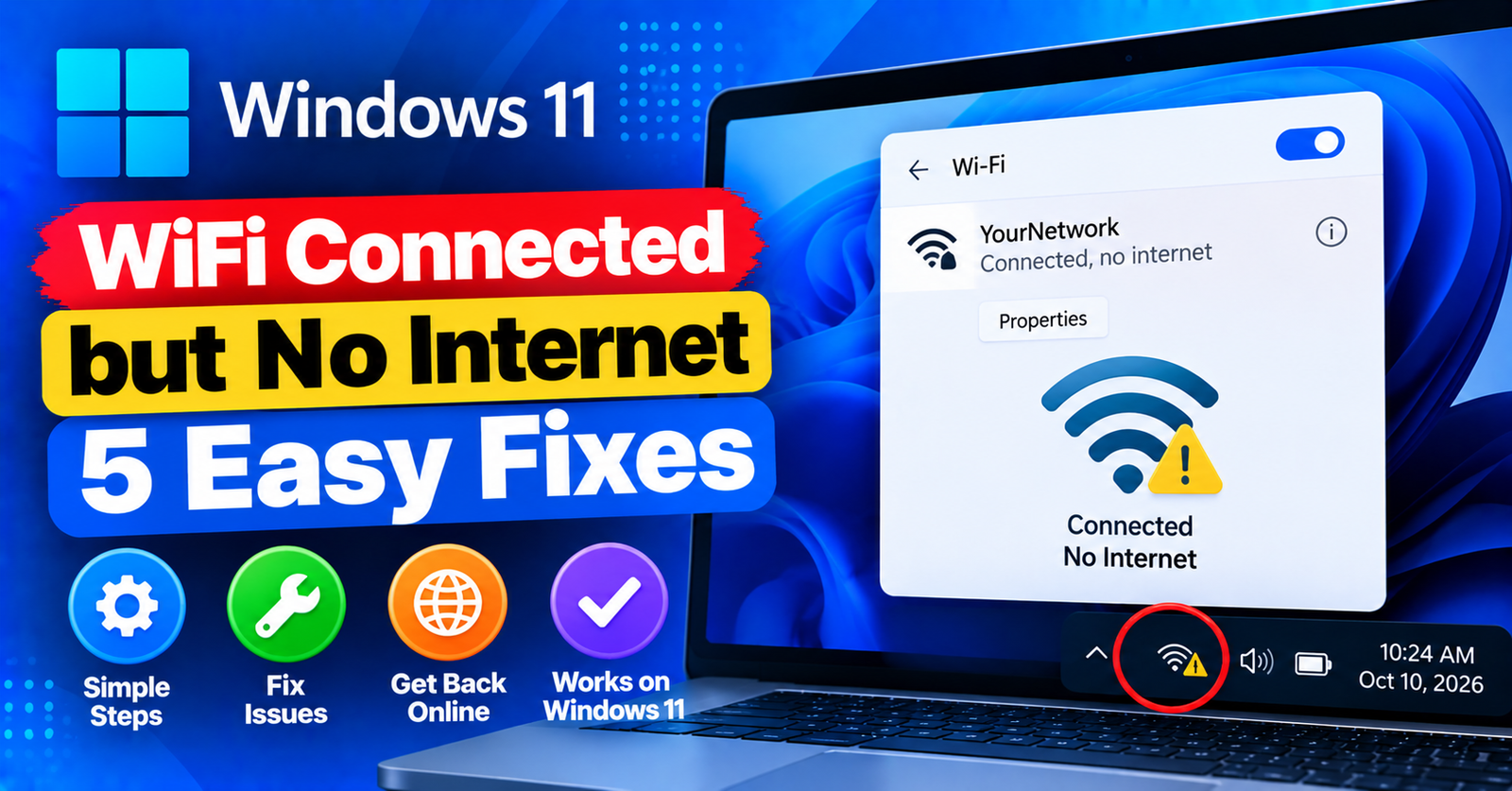
Your laptop indicates that it is connected to your home Wi-Fi network with full signal strength, but when you open a browser, every webpage fails to load with a frustrating status:
Connected, no internet access / No internet, secured
This is one of the most common networking glitches in Windows 11. It means your computer is successfully communicating with your local wireless router, but the router cannot route your data out to the wider internet.
Whether the issue is a clogged DNS cache, corrupted TCP/IP stack, or outdated wireless adapter driver, resolving it is straightforward.
In this guide, we will show you five easy ways to fix the wifi connected but no internet windows 11 error and get your connection back immediately.





Fix 1: Flush DNS and Reset TCP/IP Stack (The Golden Fix)
Corrupted network socket caches in Windows are the number one culprit behind false connected states.
- Press
Windows Key + S, typecmd, and select Run as administrator. - Run the following commands one by one, pressing Enter after each line:
netsh winsock reset
netsh int ip reset
ipconfig /release
ipconfig /renew
ipconfig /flushdns
Once all five commands finish executing, restart your PC. Your network routing table will be completely renewed.
Fix 2: Switch to Google or Cloudflare Public DNS
Often, your internet service provider’s (ISP) default DNS servers go down temporarily, making your computer unable to resolve domain names to IP addresses.
- Press
Windows Key + R, typencpa.cpl, and press Enter to open Network Connections. - Right-click on your Wi-Fi adapter and select Properties.
- Double-click on Internet Protocol Version 4 (TCP/IPv4).
- Select Use the following DNS server addresses:
Preferred DNS server: 8.8.8.8
Alternate DNS server: 8.8.4.4
Click OK to save changes. Google’s public DNS will immediately resolve your web requests.
Fix 3: Perform a Complete Network Reset in Settings
Windows 11 includes an automated network reset tool that removes and reinstalls all network adapters to factory defaults.
- Open Settings (
Win + I). - Click on Network & internet > Advanced network settings.
- Under More settings, click Network reset.
- Click the Reset now button and confirm.
Windows will restart your PC in five minutes, restoring all network drivers to a clean state.
Fix 4: Disable Power Saving for Your Wi-Fi Adapter
Windows 11 power management frequently puts wireless cards into sleep mode to conserve battery, causing connectivity drops.
- Press
Windows Key + Xand select Device Manager. - Expand Network adapters.
- Right-click your wireless card (e.g., Intel Wi-Fi 6) and click Properties.
- Go to the Power Management tab.
- Uncheck Allow the computer to turn off this device to save power.
Fix 5: Restart Your Wireless Router and Modem
Do not overlook the obvious hardware step. Routers experience memory leaks and DHCP IP address assignment conflicts over weeks of uninterrupted operation.
- Unplug the power cables from both your modem and Wi-Fi router.
- Wait 30 full seconds.
- Plug the modem back in first, wait for the lights to turn solid green, then plug in the router.
For more essential tech guides, review our tutorials on fixing the failed to write file to disk error and resolving 413 request entity too large issues.
Wrapping Up
Seeing a full Wi-Fi signal without internet access is frustrating, but running the TCP/IP and DNS flush commands or switching to Google DNS will get your browsing restored in minutes.
Did flushing your DNS fix your connection? Let us know in the comments below!