

The File Is Too Large for the Destination File System: 3 Quick Fixes
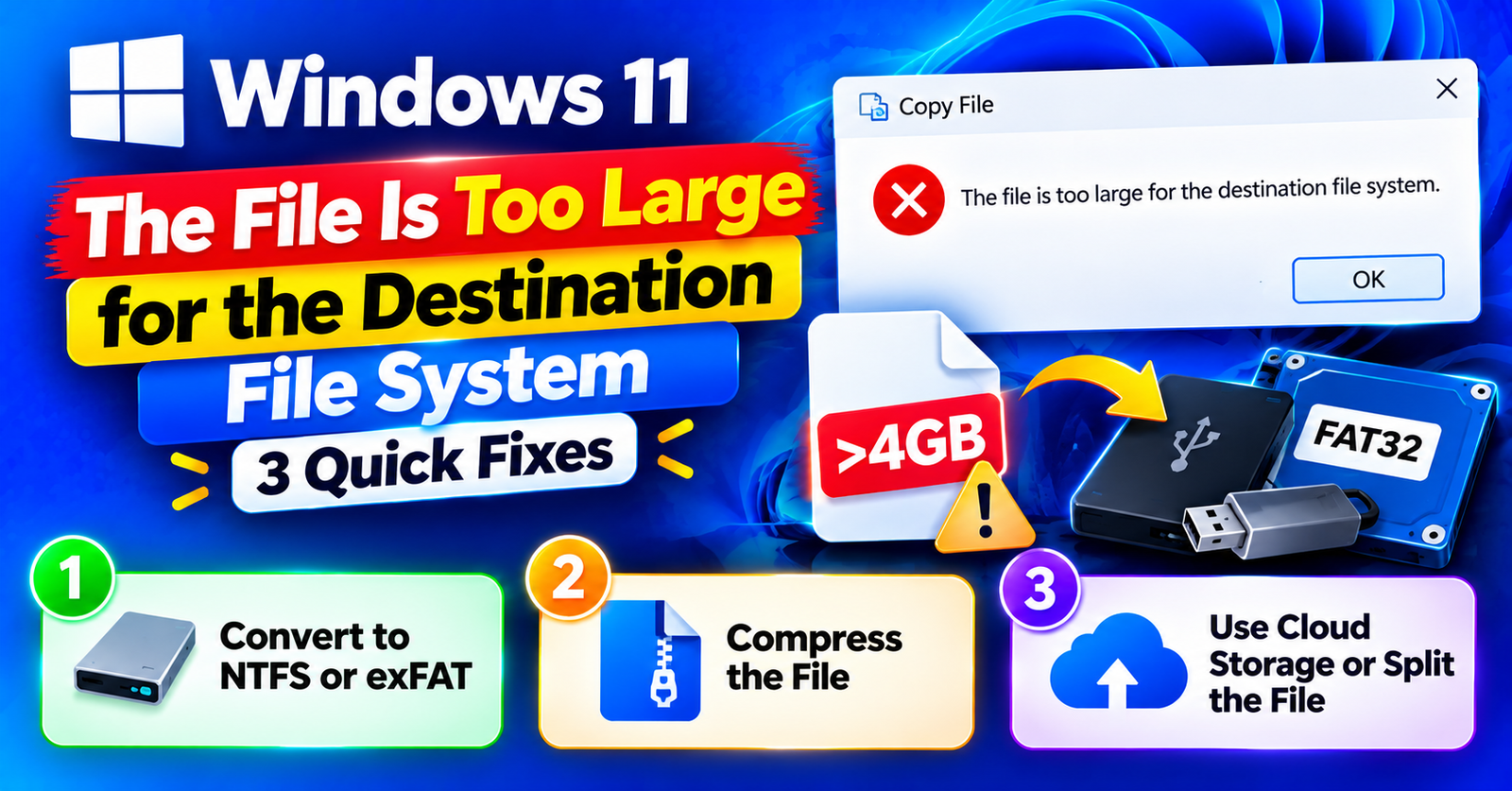
You plug a brand new 64GB or 128GB USB flash drive into your computer. You have 50GB of free space. You try to copy a 5GB video file or ISO disc image onto the drive, and Windows abruptly halts with this baffling message:
The file is too large for the destination file system.
How can a 5GB file be too large for a drive that has 50GB of free space?
The issue has nothing to do with your available storage capacity. It is caused by the drive’s file system format. Most USB flash drives come pre-formatted from the factory with the older FAT32 file system, which has a hardcoded, unchangeable architectural limit: it cannot store any individual file larger than 4GB.
In this guide, we will show you three simple ways to convert your drive to NTFS or exFAT and copy large files without losing any data.
Fix 1: Convert FAT32 to NTFS via Command Prompt (No Data Loss)
If you already have important files stored on your USB flash drive and do not want to delete them, Windows includes a built-in conversion command that upgrades the file system to NTFS without formatting.
- Open This PC and note down the letter assigned to your USB drive (for example, drive
E:orF:). - Press Windows Key + S, type cmd, and click Run as administrator.
- Type the following command (replace
X:with your actual USB drive letter):
convert X: /fs:ntfs
Press Enter. Windows will convert your drive’s file allocation table to NTFS in about 30 seconds. All your existing files will remain 100% intact, and you can now copy files of any size!
Fix 2: Format the Drive to exFAT or NTFS (Clean Slate Method)
If your USB drive is empty or you have already backed up its contents, reformatting it is the cleanest and fastest approach.
Which format should you choose?
- exFAT (Recommended): Supports files larger than 4GB AND works seamlessly across Windows, Mac, iPad, Linux, and gaming consoles (PS5/Xbox).
- NTFS: Best if the drive will only ever be used on Windows computers.
How to format:
- Open File Explorer and click on This PC.
- Right-click your USB flash drive and select Format…
- Under the File system dropdown, choose exFAT or NTFS.
- Ensure Quick Format is checked.
- Click Start and confirm.
Fix 3: Split the Large File Using 7-Zip (When Formatting Is Not Allowed)
If you are using a work drive or a device that strictly requires FAT32 compatibility, you can split your large file into smaller 3GB archive chunks.
- Download and install the free utility 7-Zip.
- Right-click your large file and select 7-Zip > Add to archive…
- Under the Split to volumes, bytes dropdown, select 4092M – FAT (or type
3000M). - Click OK.
7-Zip will create multi-part files that fit comfortably onto your FAT32 drive.
For more practical tech and server administration tutorials, check our guides on resolving failed to write file to disk errors and adjusting settings for 413 request entity too large issues.
Wrapping Up
The “file is too large for the destination file system” error is simply a reminder of the 4GB FAT32 limit. Converting your drive to exFAT or NTFS removes the file size limit permanently.
Did converting to NTFS solve your transfer issue? Let us know in the comments below!