

Error Establishing a Database Connection in WordPress: 4 Quick Fixes
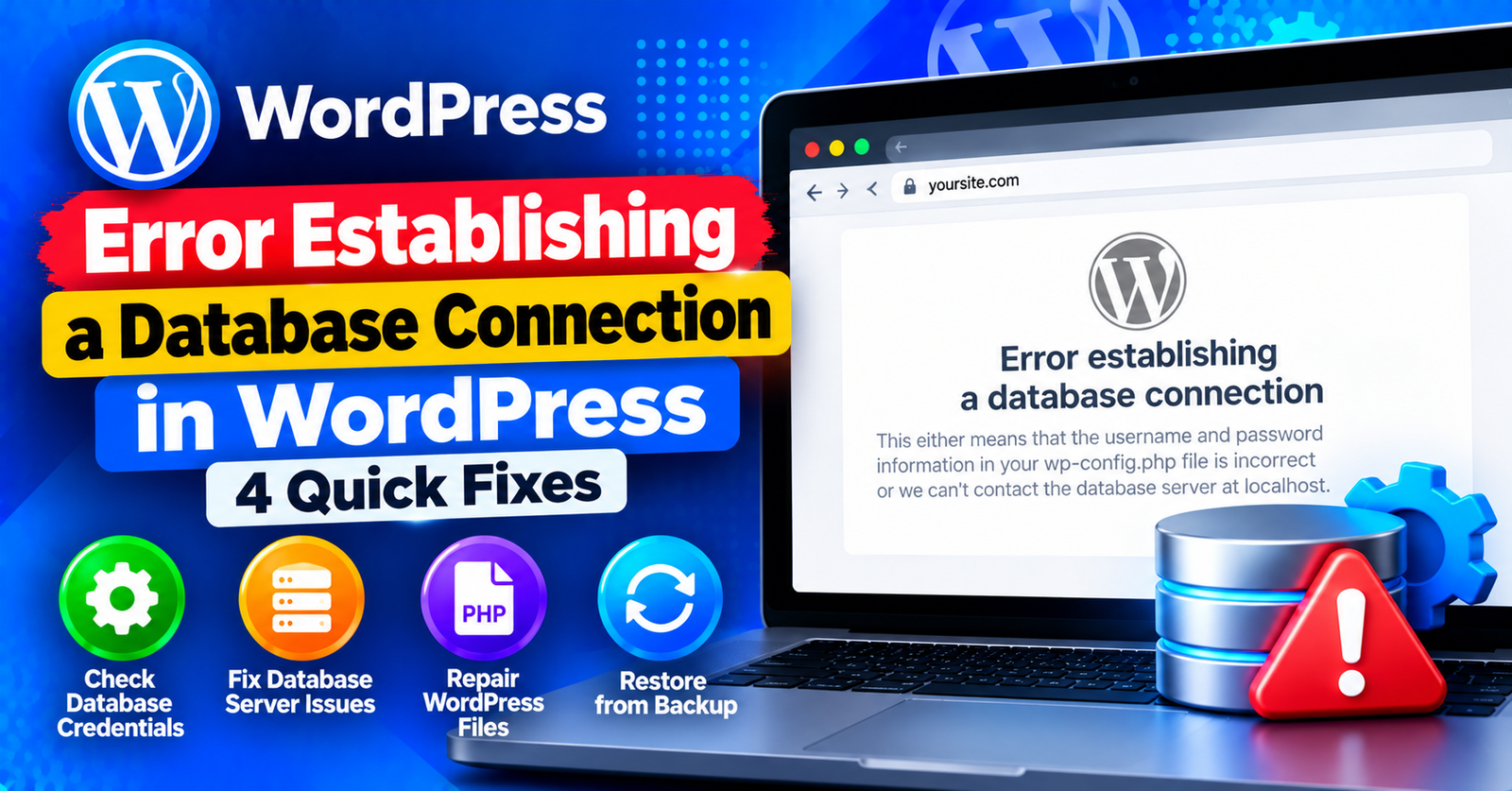
You open your browser, enter your website address, and instead of your familiar homepage, your screen turns pitch black with white text or a plain white page with one stark message:
Error establishing a database connection
Few error messages sound as frightening as this one. It sounds like your entire website, along with every blog post and comment you have ever written, has vanished into thin air.
Take a deep breath: your data is almost certainly safe. This error simply means that PHP cannot talk to your MySQL database to retrieve your website content.
In this guide, we will break down why WordPress loses contact with its database and show you four tested methods to fix the error establishing a database connection quickly.


What Causes the Error Establishing a Database Connection?
WordPress requires two core components to run: your core files (PHP, CSS, images) and your MySQL database (which stores your posts, pages, user accounts, and settings).
When someone loads a page, PHP uses credentials stored in your wp-config.php file to connect to MySQL. The connection fails when:
- Incorrect Database Credentials: Your database name, username, or password was changed or entered incorrectly.
- Corrupted WordPress Database: A crashed table caused by an abrupt plugin update or server crash.
- Unresponsive Database Server: Your web hosting server’s MySQL service went down due to high traffic spikes.
- Corrupted WordPress Core Files: A file was partially written during an automatic background update.
Fix 1: Check Your Database Credentials in wp-config.php (90% of Cases)
The overwhelming majority of database connection errors occur because the credentials inside wp-config.php do not match the actual database user in your hosting account.
Step 1: Open wp-config.php
Log in to your hosting cPanel, open File Manager, and go to your root directory (public_html). Right-click wp-config.php and click Edit.
Step 2: Inspect the DB constants
Look for the following four lines near the top of the file:
// ** Database settings - You can get this info from your web host ** //
define( 'DB_NAME', 'database_name_here' );
define( 'DB_USER', 'username_here' );
define( 'DB_PASSWORD', 'password_here' );
define( 'DB_HOST', 'localhost' );
Step 3: Verify credentials in cPanel
- In cPanel, open MySQL Databases.
- Verify that the DB_NAME exists under Current Databases.
- Verify that the DB_USER exists and has ALL PRIVILEGES assigned to that database.
- If you are unsure of the password, reset the user password in MySQL Databases, and update the DB_PASSWORD line in wp-config.php to match.
- Ensure DB_HOST is set to
localhost(for most hosts like Namecheap, Bluehost, or Hostinger).
Save changes and refresh your website. In most cases, your site will load immediately.
Fix 2: Repair a Corrupted WordPress Database
Are you seeing a slightly different error on your admin dashboard—such as “One or more database tables are unavailable”—while your frontend shows the database connection error?
This means your database has corrupted tables. WordPress includes a built-in repair utility you can activate:
- Open your wp-config.php file.
- Just above the line
/* That's all, stop editing! */, paste this code:
define( 'WP_ALLOW_REPAIR', true );
Save the file. Now, visit this URL in your web browser: https://yourdomain.com/wp-admin/maint/repair.php
Click the Repair Database button. WordPress will scan and rebuild any corrupted tables. Once the process completes, make sure to delete that line from your wp-config.php file so unauthorized users cannot run the repair tool.
Fix 3: Check if Your Database Server (MySQL) Is Down
If your credentials are 100% correct and the repair tool did not help, your web hosting server’s MySQL daemon may have crashed due to traffic spikes or memory overload.
To verify if MySQL is running:
- In cPanel, click on phpMyAdmin.
- If phpMyAdmin fails to open or displays a connection error, the entire database server on your hosting node is offline.
If you have VPS root access, restart MySQL via SSH:
sudo systemctl restart mysql
If you are on shared hosting, contact your web hosting support immediately. A server technician will restart the database daemon.
Fix 4: Increase PHP Memory Limits
Sometimes a resource-heavy plugin runs out of memory while fetching database queries, causing the database connection pool to collapse.
Add this line to your wp-config.php file:
define( 'WP_MEMORY_LIMIT', '256M' );
This ensures your PHP scripts have plenty of RAM to handle database requests.
For more troubleshooting guides covering essential WordPress maintenance, check our tutorials on solving the failed to write file to disk error and fixing the 413 request entity too large limit.
Wrapping Up
Seeing the error establishing a database connection can be unnerving, but methodically verifying credentials in wp-config.php and repairing database tables will solve the problem in almost every situation.
Did resetting your database password fix the connection? Let us know in the comments below!