

ERR_CONNECTION_REFUSED in Chrome: 4 Proven Solutions
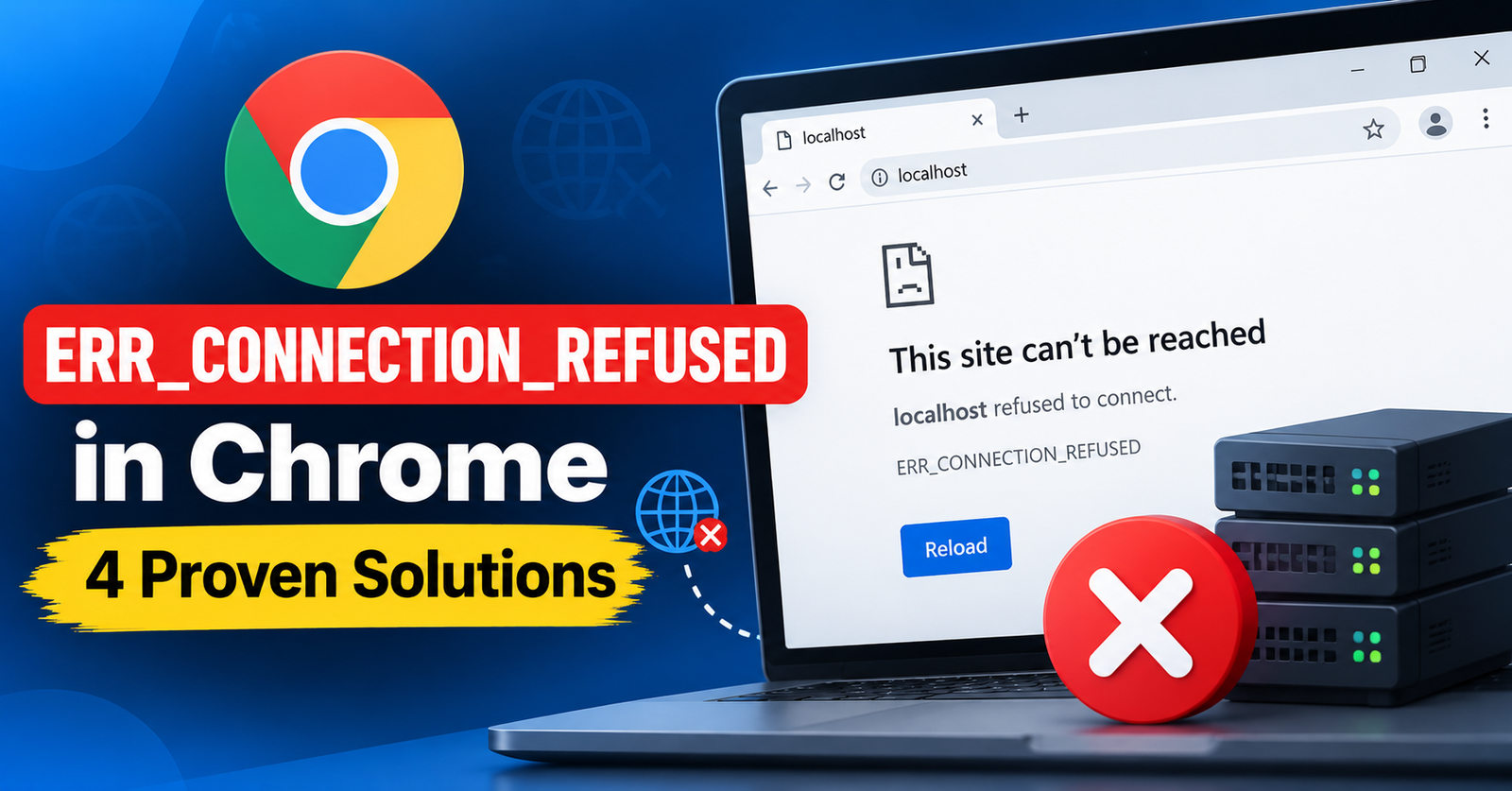
You try to open a website, the loading spinner churns for a moment, and Chrome displays a blank gray screen with this direct refusal:
This site cannot be reached / ERR_CONNECTION_REFUSED
Unlike timeout errors that suggest a slow network, a connection refused error means that your computer reached the server’s IP address, but the server actively refused to open a communication port.
In most consumer cases, the issue is not the website itself—it is a rogue proxy server setting in Windows, a misbehaving browser extension, or an overprotective local firewall blocking outgoing traffic.
In this guide, we will show you four tested ways to fix the ERR_CONNECTION_REFUSED error in Google Chrome.



What Triggers ERR_CONNECTION_REFUSED?
When you request a webpage, your computer attempts to initiate a TCP handshake on port 80 (HTTP) or port 443 (HTTPS).
A refusal response happens when:
- Unintended Proxy Configuration: Malware or a forgotten VPN configured a local proxy port (like 127.0.0.1:8080) that is no longer listening.
- Local Firewall Block: Windows Defender Firewall blocking outgoing browser ports.
- Corrupted Browser Cache: Stale cookies and cache redirecting your browser to an offline port.
- Web Server Port Offline: On the server side, Apache, Nginx, or LiteSpeed crashed and is not actively listening on port 443.
Fix 1: Disable Windows Proxy Server Settings (Most Frequent Fix)
Unwanted proxy settings configured by third-party software are responsible for the vast majority of connection refused errors on Windows.
- Press Windows Key + R, type
inetcpl.cpl, and press Enter to launch Internet Properties. - Click on the Connections tab at the top.
- Click the LAN settings button near the bottom.
- Ensure that Automatically detect settings is checked.
- Make sure the checkbox for Use a proxy server for your LAN is UNCHECKED.
- Click OK and apply changes.
Reload Chrome. If a dead proxy was hijacking your web traffic, your connection will resume immediately.
Fix 2: Clear Chrome Browsing Data and Cookies
If the error only occurs on one specific website while all other sites load cleanly, Chrome is likely caching an obsolete redirect header.
- Press
Ctrl + Shift + Deleteinside Google Chrome. - Set the Time range dropdown to All time.
- Check Cookies and other site data and Cached images and files.
- Click Clear data.
Fix 3: Reset Windows Firewall to Default Rules
A corrupted firewall rule or conflicting security suite can accidentally block Chrome from sending outbound traffic.
- Press Windows Key + S, type Windows Security, and hit Enter.
- Click on Firewall & network protection.
- Click on Restore firewalls to default.
- Confirm the prompt.
This wipes any erroneous outbound port restrictions and resets all application permissions to factory standards.
Fix 4: Flush DNS and Reset Network Sockets
If corrupted network routing tables are pointing to closed destination sockets, renewing your IP table will clear the block.
- Open Command Prompt as Administrator (
cmdin Windows Search). - Run the following two commands:
netsh winsock reset
ipconfig /flushdns
Restart your computer to apply the socket reset.
For more web and server troubleshooting tutorials, read our articles on fixing the failed to write file to disk error and expanding server limits for the 413 request entity too large error.
Wrapping Up
The ERR_CONNECTION_REFUSED error is almost always resolved by checking your LAN proxy settings or flushing your network sockets. Disabling proxy redirects returns your connection to standard direct routing in less than two minutes.
Did disabling your proxy fix the error? Let us know in the comments below!