

Critical Error on This Website: How to Fix in WordPress (5 Easy Methods)
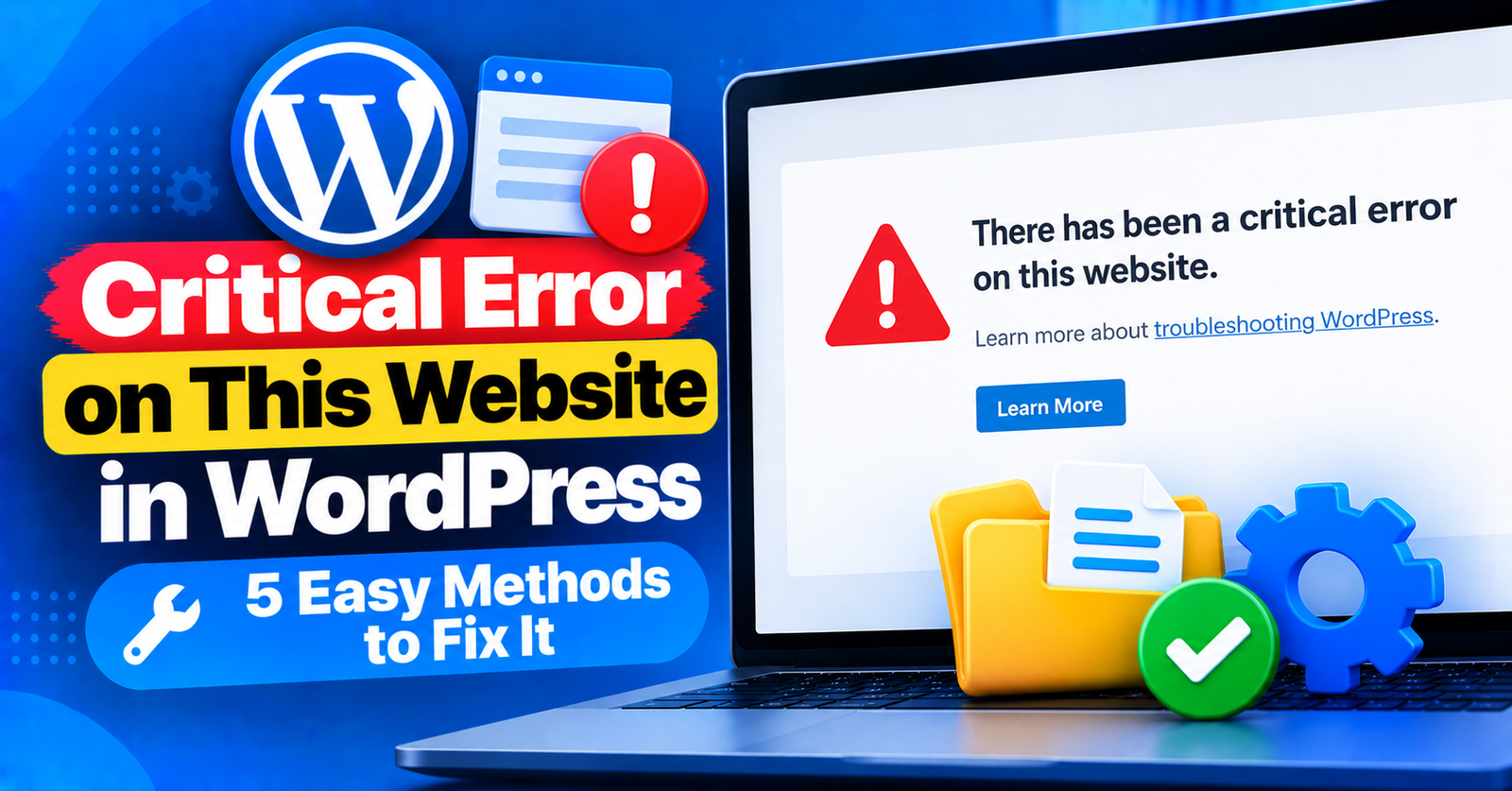
Few things trigger panic like visiting your own website and being greeted by this single sentence:
There has been a critical error on this website. Please check your site admin email inbox for instructions.
This warning message is WordPress’s modern replacement for the infamous White Screen of Death (WSOD). It means a fatal PHP script error occurred, and WordPress had to shut down the page execution to protect your database from corruption.
Do not worry. Your posts, pages, and media files are completely intact. In this detailed guide, we will walk you through five practical ways to find the source of the critical error on this website and fix it quickly.
What Causes the Critical Error on This Website in WordPress?
In almost every case, a critical error is caused by a fatal PHP code conflict. Common triggers include:


- Incompatible Plugins: A recently updated or installed plugin conflicting with another plugin or your WordPress core version.
- Faulty Theme Updates: A theme file containing outdated PHP functions or syntax errors.
- Exhausted PHP Memory: A heavy script requesting more RAM than your server allows.
- PHP Version Mismatch: Your server running an old version of PHP (like PHP 7.4) that does not support newer plugin code, or vice versa.
Fix 1: Check Your Admin Email for the Recovery Link
Whenever a fatal error occurs, WordPress automatically attempts to capture the error details and sends an email to your site administrator address.
Open your email inbox and search for an email with the subject: Your Site is Experiencing a Technical Issue.
Inside the email, you will find:
- The exact plugin or theme file that caused the crash.
- The exact line of code where the failure happened.
- A special Recovery Mode link that lets you log in to your dashboard safely while disabling the broken component.
If you received the email, simply click the link, log in, and deactivate the problematic plugin. If you did not receive an email due to server mail issues, proceed to Fix 2.
Fix 2: Enable WordPress Debug Mode to See the Actual Error
Instead of guessing which plugin broke your site, you can force WordPress to display the raw error log on your screen.
Step 1: Open wp-config.php
Log in to your hosting cPanel, open File Manager, and go to your public_html root directory. Locate the wp-config.php file, right-click, and select Edit.
Step 2: Turn on WP_DEBUG
Scroll down until you find the line that says:
define( 'WP_DEBUG', false );
Replace that line with the following snippet:
define( 'WP_DEBUG', true );
define( 'WP_DEBUG_LOG', true );
define( 'WP_DEBUG_DISPLAY', false );
Save changes. Now, open the wp-content folder. You will see a newly generated file named debug.log. Open this file, scroll to the bottom, and you will see the exact filename and plugin responsible for the crash.
Fix 3: Deactivate All Plugins via FTP or cPanel
If you cannot access your wp-admin dashboard, you can disable all plugins simultaneously in ten seconds without losing any of your plugin settings.
- In cPanel File Manager, go to
public_html/wp-content/. - Locate the folder named plugins.
- Right-click the folder and rename it to plugins_deactivated.
- Now visit your website. If it loads normally, you know 100% that a plugin caused the critical error.
- Rename the folder back to plugins. You can now log into your wp-admin area and reactivate your plugins one by one until you find the broken one.
Fix 4: Switch to a Default WordPress Theme
If renaming the plugins folder did not fix the problem, your active theme might be the culprit.
- Navigate to
public_html/wp-content/themes/. - Find the folder for your current active theme (e.g., astra, jannah, generatepress).
- Rename it by adding
_oldto the end (for example,astra_old).
When WordPress cannot find your active theme, it automatically falls back to a default theme like Twenty Twenty-Four. If your site comes back online, your theme code was causing the conflict.
Fix 5: Increase the PHP Memory Limit
If your website is running complex page builders like Elementor or WooCommerce, a simple memory shortage can trigger fatal errors.
Open your wp-config.php file and add this line just above the /* That's all, stop editing! */ line:
define('WP_MEMORY_LIMIT', '512M');This allows WordPress to use up to 512MB of RAM, eliminating memory-related crashes.
For more detailed file and directory maintenance tutorials, check our guides on resolving failed to write file to disk errors and adjusting your server configurations for 413 request entity too large issues.
Wrapping Up
Encountering the critical error on this website is stressful, but methodically isolating plugins, checking debug logs, and raising memory limits will get your website restored quickly.
Did checking the debug log help you identify the culprit? Let us know in the comments below!