

Audio Renderer Error. Please Restart Your Computer: 5 Quick Fixes
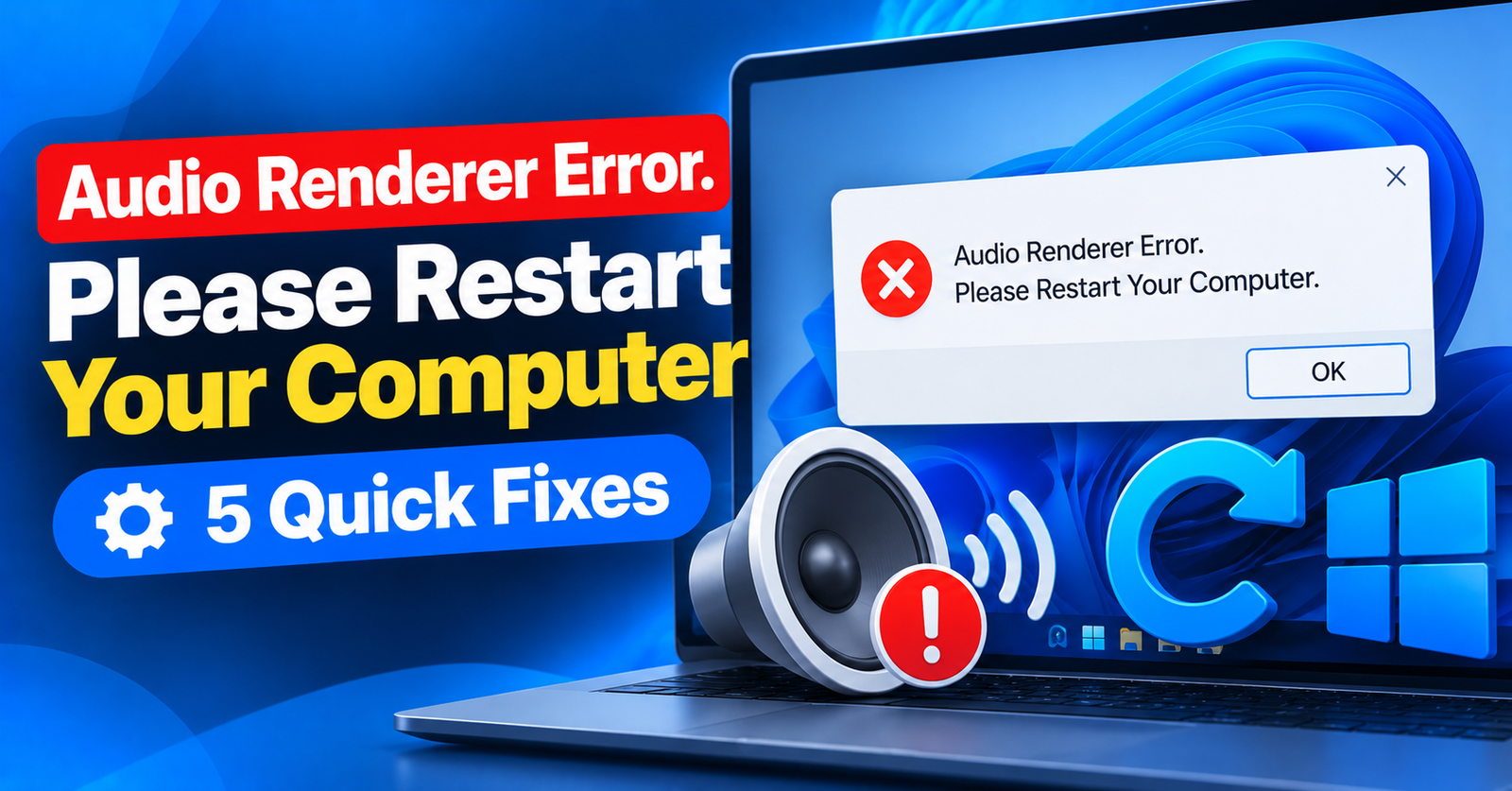
You sit down to watch a YouTube video, launch a streaming playlist, or join an online meeting, and the video immediately freezes with this frustrating overlay:
Audio renderer error. Please restart your computer.
You restart your computer, play another video, and thirty minutes later the exact same error strikes again. Restarting your PC every time audio crashes is not a viable solution.
This error happens when your web browser loses communication with your Windows audio driver engine. A driver conflict, outdated Realtek sound software, or sample rate mismatch causes the browser to abort media playback.
In this guide, we will show you five permanent fixes for the audio renderer error please restart your computer message in Windows 11.

Fix 1: Restart the Windows Audio Service (The 30-Second Fix)
Instead of rebooting your entire computer, you can restart the background Windows Audio engine in seconds.
- Press Windows Key + R, type
services.msc, and hit Enter. - Scroll down to find Windows Audio.
- Right-click on Windows Audio and select Restart.
- If prompted to restart dependent services (like Windows Audio Endpoint Builder), click Yes.
Refresh your YouTube video tab. Playback will resume with crisp sound immediately!
Fix 2: Roll Back or Reinstall Your Audio Driver
A recent Windows Update often installs generic audio drivers that clash with Realtek, Nahimic, or USB headset software.
- Press Windows Key + X and open Device Manager.
- Expand Sound, video and game controllers.
- Right-click your primary audio device (e.g., Realtek High Definition Audio) and select Properties.
- Go to the Driver tab. If available, click Roll Back Driver.
- If Roll Back is grayed out, click Uninstall Device, check the driver deletion box, and restart your computer. Windows will automatically install a clean factory driver.
Fix 3: Change Your Audio Sample Rate Quality
If your sound card’s default sample rate is set too high (such as 24-bit 192,000 Hz studio quality), web browsers can struggle to render audio streams, triggering the renderer failure.
- Press Windows Key + R, type
mmsys.cpl, and press Enter to launch the Sound control panel. - Select your default speakers/headphones and click Properties.
- Go to the Advanced tab.
- Under Default Format, change the dropdown to:
16-bit, 44100 Hz (CD Quality) or 24-bit, 48000 Hz (Studio Quality). - Click Apply and OK.
Fix 4: Disable Hardware Acceleration in Google Chrome
A conflict between your graphics card’s audio pass-through (HDMI/DisplayPort audio) and your browser’s hardware acceleration can crash media decoders.
- In Chrome, click the three dots in the top-right corner and open Settings.
- In the left sidebar, click System.
- Toggle Use graphics acceleration when available to OFF.
- Click the blue Relaunch button.
Fix 5: Run the Windows Audio Troubleshooter
Windows 11 includes an automated diagnostic tool that can detect audio driver hangups and reset audio endpoints automatically.
- Press Windows Key + I to open Settings.
- Go to System > Troubleshoot > Other troubleshooters.
- Locate Audio and click the Run button.
- Follow the on-screen prompts to apply recommended fixes.
For more tech guides and computer troubleshooting tutorials, check our articles on fixing the failed to write file to disk error and expanding limits for 413 request entity too large issues.
Wrapping Up
You never have to restart your whole computer to fix the audio renderer error. Restarting the Windows Audio service or matching your sound card’s sample rate to 44.1 kHz solves the crash permanently.
Did adjusting your audio sample rate resolve your YouTube playback? Let us know in the comments below!