

Allowed Memory Size of Bytes Exhausted in WordPress: 4 Easy Fixes
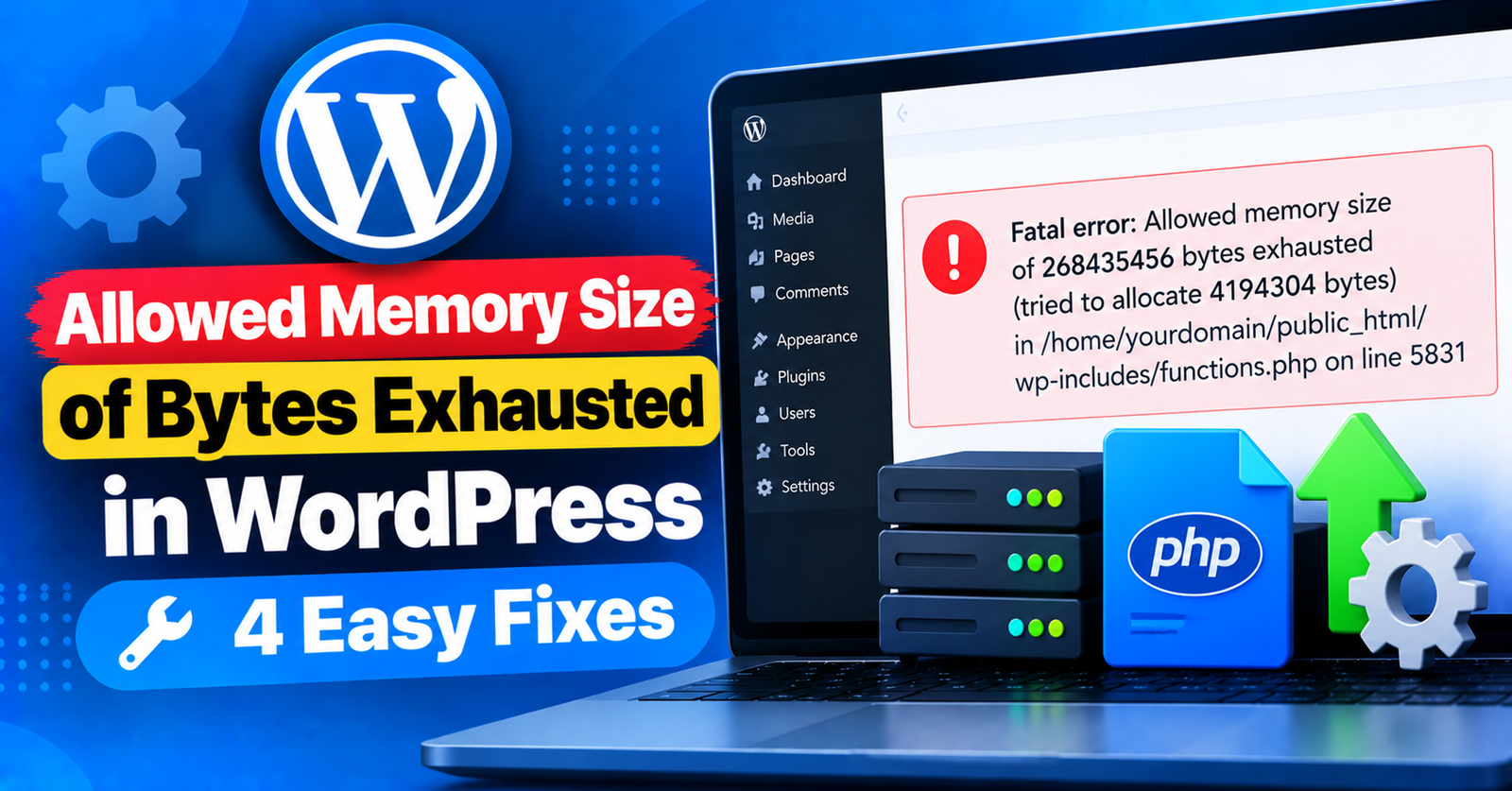
Have you ever encountered an error message that looks like a string of random numbers, such as:
Fatal error: Allowed memory size of 67108864 bytes exhausted (tried to allocate 12288 bytes) in /home/user/public_html/wp-content/plugins/…
This is commonly known as the WordPress memory exhausted error. It happens when a script running on your website demands more system memory (RAM) than your web hosting server has allocated for your account.
Because PHP limits memory to keep rogue scripts from freezing the entire shared server, running resource-heavy plugins—such as WooCommerce, Elementor, or complex backup tools—can easily exceed your default allowance.
In this guide, we will explain how WordPress allocates memory and provide four step-by-step methods to fix the allowed memory size exhausted error permanently.



What Does the Allowed Memory Size Exhausted Error Mean?
Every software application needs memory to run, and WordPress is no exception. When a visitor requests a page on your site, PHP processes database queries, executes plugin functions, and renders HTML.
By default, WordPress automatically tries to allocate 40MB of memory for single-site installs (and 64MB for multisite). However, modern themes and plugins routinely require between 128MB and 256MB to function properly.
When the memory cap is hit, PHP terminates the process instantly to avoid a server crash, resulting in the fatal error notice.
Fix 1: Increase PHP Memory Limit in wp-config.php (The Recommended Fix)
The cleanest and most reliable way to allocate more RAM to WordPress is by defining the memory limit in your wp-config.php configuration file.
Step 1: Open your root directory
Log in to your hosting cPanel or connect via an FTP client like FileZilla. Go to your root directory (public_html).
Step 2: Edit wp-config.php
Locate the wp-config.php file. Right-click and choose Edit.
Step 3: Add the memory limit code
Scroll toward the bottom of the file until you see the following line:
/* That's all, stop editing! Happy publishing. */
Paste this line directly above it:
define( 'WP_MEMORY_LIMIT', '256M' );
Save changes. This code instructs WordPress to increase its internal PHP memory ceiling to 256MB. Refresh your website, and the error should disappear.
Fix 2: Edit Your .htaccess File
If editing wp-config.php did not solve the issue, your web server might have a hard PHP ceiling configured in Apache. You can override it using your .htaccess file.
- In
public_html, locate the hidden .htaccess file. - Open the file in the editor and scroll to the bottom.
- Paste the following directive:
php_value memory_limit 256M
Save the file. Return to your website and reload the page that previously failed.
Fix 3: Edit Your php.ini File
On hosting setups where .htaccess overrides are disabled, modifying your server’s php.ini file is the next best solution.
- In your website’s root folder (
public_html), look for a file called php.ini. If it does not exist, create a new text file and name itphp.ini. - Add or modify the memory line:
memory_limit = 256M
Save your changes. This sets your global PHP memory limit to 256MB across all scripts.
Fix 4: Contact Your Web Hosting Provider
If you have implemented all three fixes and the allowed memory size exhausted error persists, your hosting plan likely enforces a hard server-side memory ceiling that users cannot override.
You can send this quick message to your host’s support team:
Hi Support team,
My WordPress website is throwing an “Allowed memory size of bytes exhausted” error. I have already added define(‘WP_MEMORY_LIMIT’, ‘256M’) to my wp-config.php file, but the server continues to enforce a lower limit.
Could you please increase my account PHP memory limit to 256MB (or 512MB)?
Thank you!
Quality web hosts will adjust your package limit within minutes.
While managing server configurations, you may also find our troubleshooting guides on fixing the failed to write file to disk error and dealing with 413 request entity too large helpful.
Wrapping Up
Fixing the allowed memory size exhausted error in WordPress is as simple as bumping your memory allocation to 256M in wp-config.php. Once configured, your themes and plugins will have the breathing room they need to perform smoothly.
Did increasing your memory limit solve your site crash? Let us know which plugin was hogging your memory in the comments below!