

Fix: The Action Cannot Be Completed Because the File Is Open in Another Program
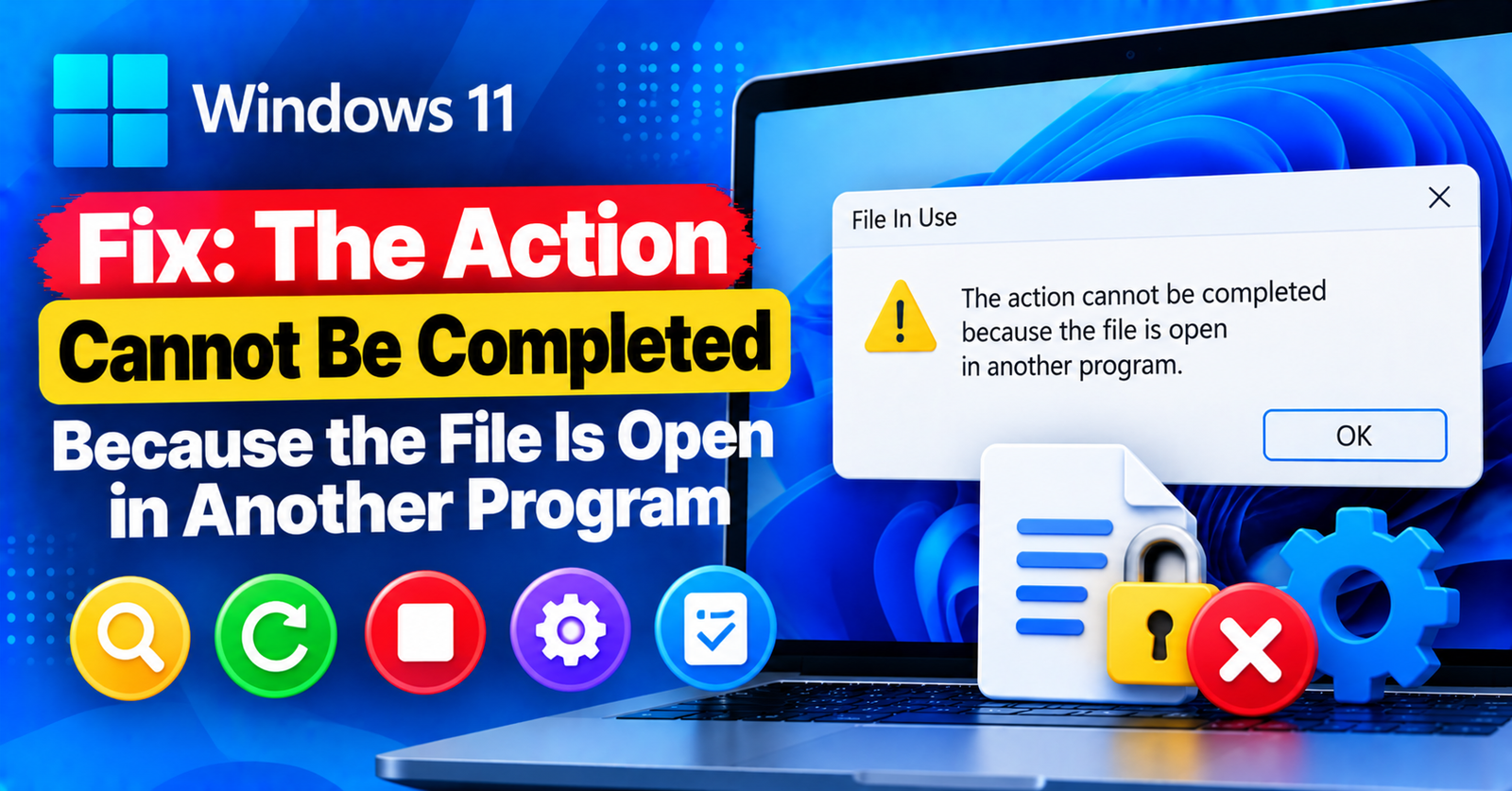
You try to delete, move, or rename a folder or file on your Windows desktop, and Windows refuses with this stubborn dialog box:
The action cannot be completed because the file is open in another program. Close the file and try again.
You check your taskbar. You close all open apps. You check Task Manager. Nothing is running! Yet Windows insists the file is actively locked by an invisible program.
This annoying error happens when a background process, Windows Explorer thumbnail generator, or antivirus scanner holds an open file handle, preventing Windows from modifying or deleting the file.
In this guide, we will show you four foolproof ways to unlock and delete any stuck file in Windows 10 and 11.





Fix 1: Restart Windows Explorer via Task Manager (Fastest Fix)
In over 70% of cases, the “another program” holding your file hostage is Windows Explorer itself, which often gets stuck generating preview thumbnails for PDFs, images, or video files.
- Press
Ctrl + Shift + Escto open Task Manager. - Find Windows Explorer in the Processes list.
- Right-click on it and select Restart.
- Immediately try deleting or renaming your file.
Fix 2: Use Resource Monitor to Find the Exact Locking Process
If restarting Explorer did not help, Windows has a built-in tool that shows you the exact process locking the file.
- Press
Windows Key + R, typeresmon.exe, and press Enter to launch Resource Monitor. - Click on the CPU tab.
- Expand the Associated Handles section.
- In the search box next to Associated Handles, type the name of the stuck file or folder.
- Resource Monitor will display the exact program holding the file open.
- Right-click that process and select End Process.
Now return to your folder and delete the file without issues.
Fix 3: Delete the File Using Command Prompt (Force Delete)
You can bypass Windows Explorer entirely and force delete the locked file through the command line.
- Press
Windows Key + S, typecmd, and choose Run as administrator. - Type the following command (replace with your file path):
del /f /q /a "C:\Users\YourUsername\Desktop\yourfile.ext"
Press Enter. The /f flag forces the deletion of read-only files, wiping it from your hard drive instantly.
Fix 4: Boot into Windows Safe Mode
If an aggressive third-party service or security suite is continuously locking the file, deleting it inside Windows Safe Mode will resolve it.
- Hold down the
Shiftkey on your keyboard and click Restart in the Windows Start menu. - Navigate to Troubleshoot > Advanced options > Startup Settings > Restart.
- Press
4to boot into Safe Mode. - Once in Safe Mode, navigate to your file and delete it.
- Restart your computer normally.
For more practical troubleshooting guides, check out our articles on fixing the failed to write file to disk error and resolving 413 request entity too large issues.
Wrapping Up
The “file is open in another program” error is simply a leftover file handle lock. Using Resource Monitor or restarting Windows Explorer will unlock and delete the file in seconds.
Which process was locking your file? Let us know in the comments below!