

502 Bad Gateway Error in WordPress: 5 Proven Fixes
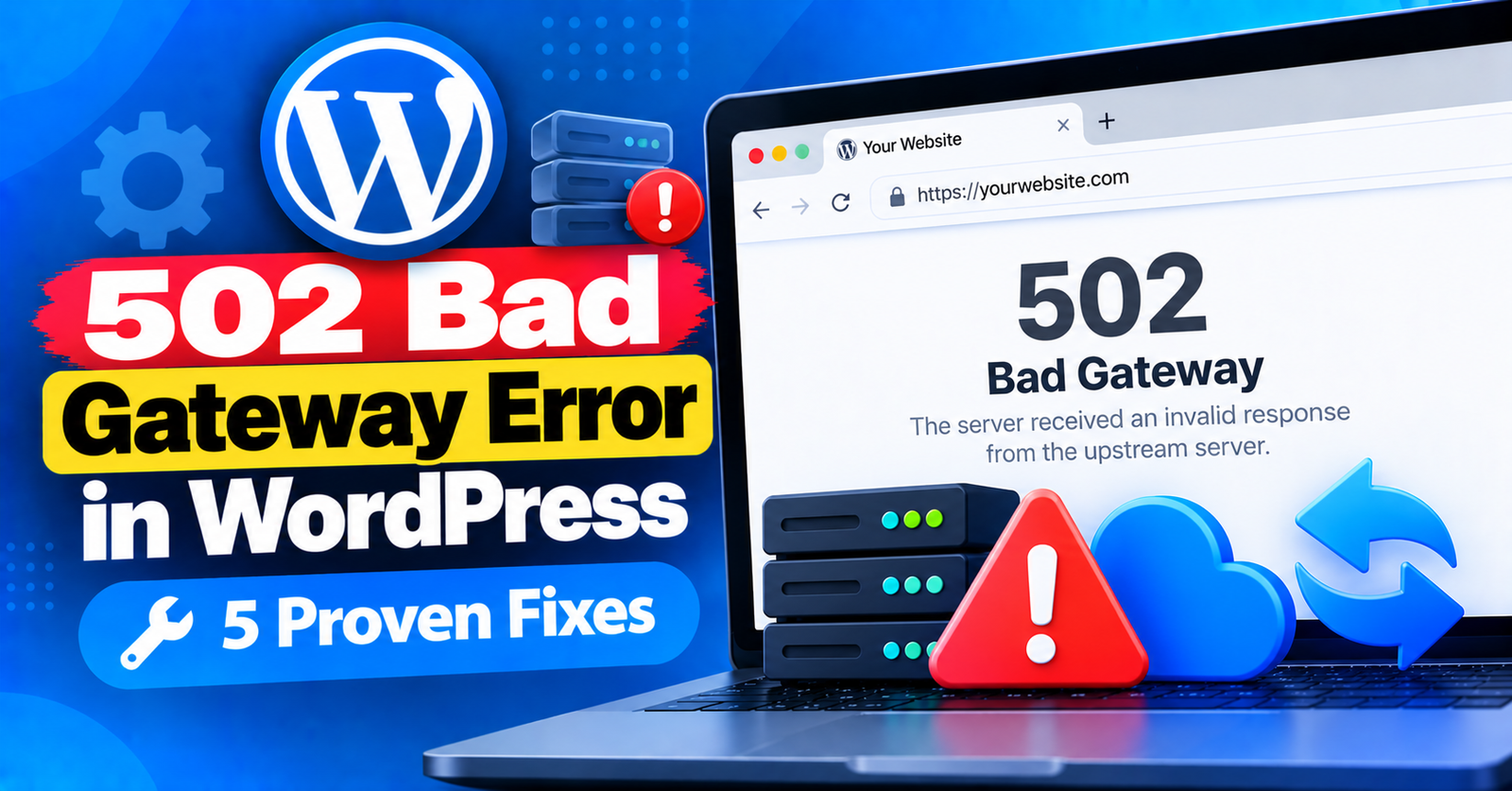
There is nothing quite as discouraging as opening your browser, navigating to your website, and being greeted by a bold, unhelpful server message:
502 Bad Gateway
Unlike regular 404 errors that indicate a missing page, a 502 error means that one server on the internet received an invalid or corrupt response from another server in the chain.
Because the problem happens at the network or edge server level, pinpointing the culprit can feel tricky. However, in WordPress, the causes are almost always linked to server resource spikes, CDN glitches, or faulty cache configurations.
In this guide, we will explain what causes a 502 bad gateway error and give you five reliable fixes to resolve it immediately.
What Causes the 502 Bad Gateway Error in WordPress?
Whenever you load a website, your browser sends a request to the origin web server (e.g., Apache, Nginx, or LiteSpeed). If you use a reverse proxy or CDN (such as Cloudflare or an edge firewall), that intermediate service forwards the request to your host.
A 502 error occurs when:
- Your origin server took too long to respond due to high traffic or heavy PHP queries.
- Your web server crashed or was restarted by the hosting company.
- A caching plugin or CDN served an invalid response.
- Your local browser or DNS cache holds outdated routing records.
Fix 1: Perform a Hard Browser Refresh and Clear Local Cache
Before touching any server settings, verify whether the issue is purely local to your device.
Browsers frequently cache error pages. Perform a hard refresh to bypass cached files:
- Windows: Press
Ctrl + F5orCtrl + Shift + R. - Mac: Press
Cmd + Shift + R.
You can also check if the site is down for everyone by using a free online tool like DownForEveryoneOrJustMe. If the site is only down for you, clearing your browser history or flushing your DNS resolver will resolve it.
Fix 2: Clear Your CDN and Firewall Cache (Cloudflare Users)
If you use Cloudflare, Sucuri, or another reverse proxy CDN, an invalid connection between the CDN edge server and your origin host can trigger a 502 error.
- Log in to your Cloudflare dashboard.
- Select your website and click the Caching tab.
- Under Configuration, click Purge Everything.
- If the error persists, temporarily toggle Development Mode on or pause Cloudflare entirely to see if your origin server loads cleanly.
Fix 3: Disable Caching Plugins and Purge Server Cache
Misconfigured caching plugins (such as LiteSpeed Cache, WP Rocket, or W3 Total Cache) can sometimes write corrupt rewrite rules that trigger gateway failures.
If you have admin access:
- Go to your caching plugin settings and select Purge All Caches.
- Temporarily deactivate the caching plugin and check if the 502 bad gateway error disappears.
If you cannot access wp-admin, connect to your server via FTP or cPanel File Manager, navigate to public_html/wp-content/plugins/, and temporarily rename the caching plugin’s folder to deactivate it.
Fix 4: Deactivate Faulty Plugins and Switch Themes
A badly coded plugin can create infinite execution loops or query timeouts that overwhelm the PHP processor, forcing the gateway to drop the connection.
To test this hypothesis:
- In cPanel File Manager, rename
public_html/wp-content/pluginstoplugins_temp. - Reload your website. If it opens, an active plugin is responsible.
- Rename the folder back to
plugins, and activate them one by one in wp-admin until the error reoccurs.
Fix 5: Contact Your Hosting Provider
If none of the steps above resolved the error, the root cause is almost certainly server-side. High resource exhaustion, crashed PHP-FPM processes, or killed MySQL queries on shared infrastructure frequently trigger 502 Bad Gateway responses.
Submit a support ticket with your host stating:
Hi Support team,
My website is returning a 502 Bad Gateway error. I have cleared my local cache, verified CDN settings, and deactivated plugins, but the error persists.
Could you please inspect the server logs to check if the web server (Nginx/Apache) or PHP-FPM service is crashing or timing out on incoming requests?
Thank you!
For more web server troubleshooting techniques, see our guides on handling failed to write file to disk errors and resolving 413 request entity too large issues.
Wrapping Up
A 502 Bad Gateway error can seem mysterious at first, but following a process of elimination—clearing caches, checking CDNs, and inspecting server resources—will get your site back online quickly.
Did clearing your CDN or reaching out to support fix your 502 error? Let us know in the comments below!