

Figma to WordPress: Top 5 Free Workflows for Developers in 2026
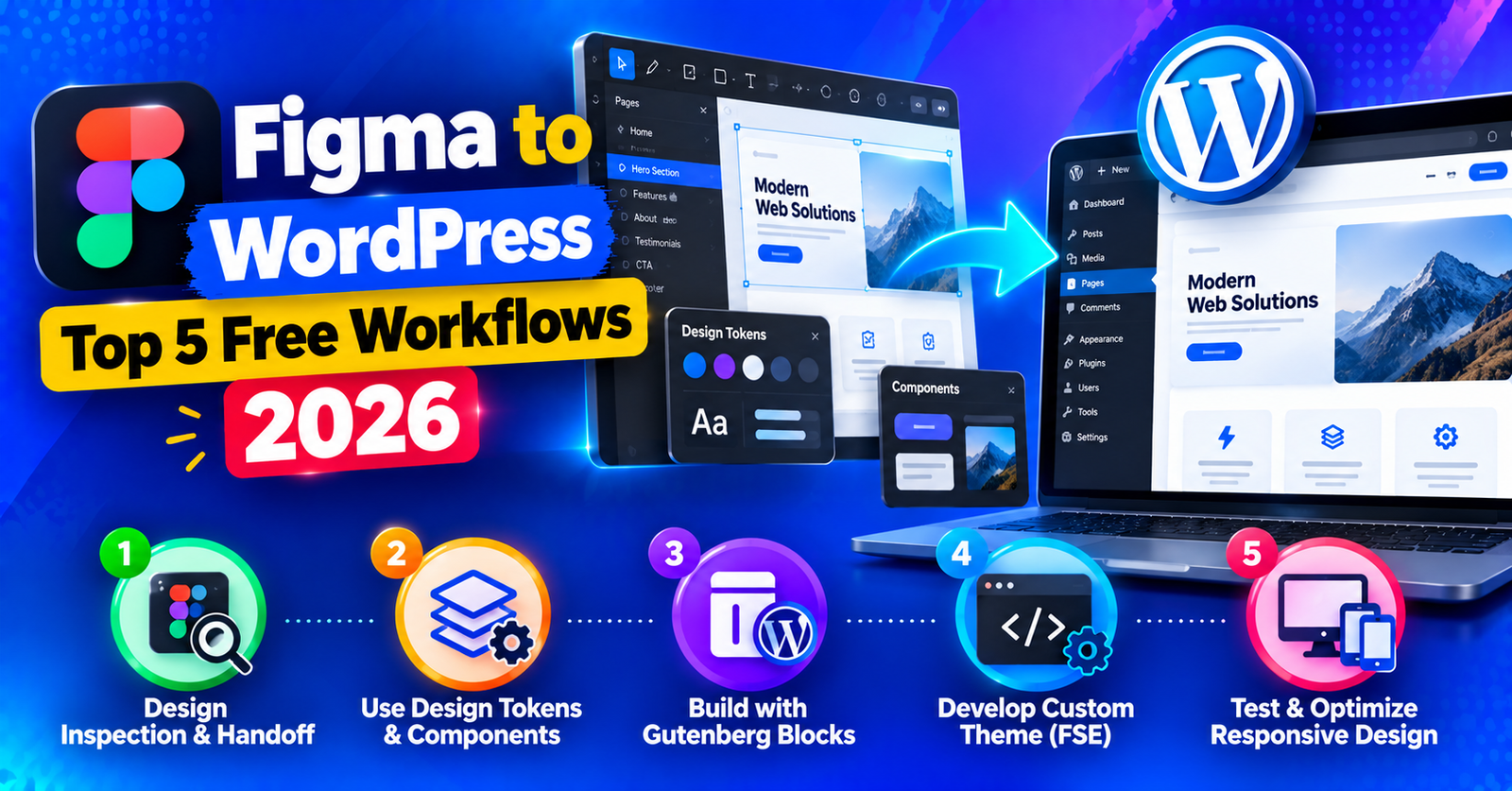
You finish crafting a pixel-perfect website UI in Figma. The typography is balanced, the spacing is meticulous, and the client has enthusiastically approved the mockups.
Now comes the real challenge: how do you convert that static Figma design into a fully functional, lightning-fast WordPress website without bloated code?
In the past, converting Figma to WordPress meant hours of manual slicing or relying on clunky plugins that generated messy, unmaintainable code. Today, modern visual builders and component-based workflows make the transition seamless.
In this developer guide, we break down the top five workflows for converting Figma to WordPress in 2026, comparing their speed, flexibility, and code quality.
Workflow 1: Figma to Clean HTML/CSS Custom Theme (Best for High Performance)
If your priority is 100/100 Google PageSpeed scores, zero plugin bloat, and total design control, the custom theme workflow remains the gold standard.





How it works:
- Use Figma’s built-in Dev Mode to inspect CSS flexbox, grid properties, colors, and typography variables.
- Build modular semantic HTML5 templates using a lightweight starter theme (such as Underscores (_s) or Sage).
- Convert dynamic content sections into custom fields using Advanced Custom Fields (ACF Pro).
Pros: Unbeatable load times, zero plugin dependency, maximum security.
Cons: Requires solid knowledge of PHP, HTML5, and CSS.
Workflow 2: Figma to Bricks Builder / Breakdance (Best for Modern Developers)
Visual site builders have evolved dramatically. Tools like Bricks Builder generate clean, semantic HTML with zero DOM bloat, mimicking raw code quality while providing visual speed.
How it works:
- Set up global design tokens (colors, font hierarchy, and spacing scales) in Bricks to match your Figma design system.
- Recreate sections using native CSS Flexbox and CSS Grid containers.
- Bind dynamic data and custom post types effortlessly.
Pros: Near-custom-code performance, full control over CSS classes (BEM methodology), rapid development.
Cons: Paid commercial license required.
Workflow 3: Figma to Native WordPress Blocks (Gutenberg)
With Full Site Editing (FSE) mature in modern WordPress, building directly in the native Block Editor provides a clean, future-proof solution.
How it works:
- Use a block framework like GenerateBlocks or Spectra.
- Map Figma auto-layout components directly to nested Container blocks.
- Export SVG icons and vector illustrations directly into block headers.
Pros: 100% native WordPress core integration, zero external builder licenses, excellent performance.
Cons: Less visual control for intricate desktop-to-mobile responsive overrides.
Workflow 4: Figma to Elementor Pro (Best for Fast Client Hand-off)
Elementor remains the most popular visual builder in the world. When clients demand an interface they can easily edit themselves after launch, Elementor is the easiest choice.
Best practice tips:
- Always use Flexbox Containers instead of legacy inner sections to keep the DOM light.
- Set up your Site Settings > Global Fonts & Colors first to match Figma styles precisely.
- Export web graphics as optimized SVG and WebP files before uploading to Elementor.
Workflow 5: Automated Figma to WordPress AI Importers
New AI-powered tools (such as UiChemy or Figma to Elementor plugins) promise one-click conversion from Figma frames to WordPress layouts.
While these tools have improved, they often generate deeply nested divs and inconsistent mobile breakpoints. They work well for rough structural scaffolding, but always require manual developer cleanup.
For more web development and server maintenance tutorials, check our guides on resolving failed to write file to disk errors and adjusting settings for 413 request entity too large issues.
Wrapping Up
The right Figma to WordPress workflow depends on your project goals. For ultimate speed, custom code or Bricks Builder leads the pack; for fast client delivery, Gutenberg and Elementor Containers provide unmatched convenience.
Which workflow do you prefer for your client projects? Share your stack in the comments below!